Cloud TAP - Azure
This article describes the Supervisor's Cloud TAP module, accessed via the Cloud TAP menu item, as pertains to tapping Azure Virtual Machines (VMs). Azure VMs can be managed further in the sections described in Traffic Management and Event Monitoring.
Cloud TAP communicates with each Azure VM through an agent. These agents are deployed automatically by Supervisor, no manual installation is required.
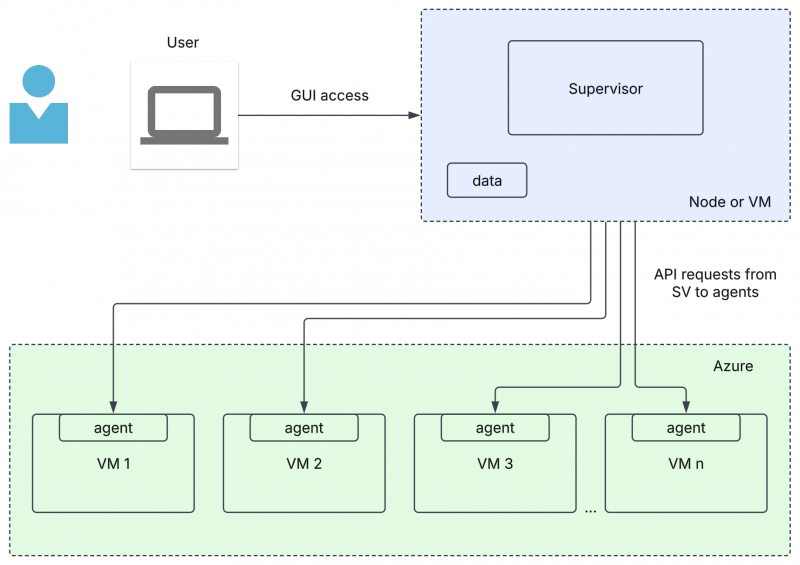
Communication between Supervisor and Azure VM environments
System requirements and prerequisites for Azure VM agents
- Processor for VM >= 2 vCPU;
- RAM: 100 MB;
- Disk space: 200 MB;
- Linux kernel >= 5.7.x;
- Windows: Server 2022 / Windows 11 or higher.
Registered Clusters
The Registered Clusters tab of the Cloud TAP page provides an overview of the Kubernetes and Azure VM environments managed by the Supervisor, general information about them, and their status.
Each virtual environment can be assigned to a Network. Networks can be used to isolate devices and virtual environments in logical networks in the Traffic Management page, with each Network operating with its own set of traffic rules.
Clicking on an environment provides additional information about this environment, and the ability to create pod groups or interface groups and tunnel destinations prior to Traffic Management.
Clicking on a network navigates to this network, listing the environments it contains. Clicking the Home  button navigates back to the root.
From this dashboard, environments and networks can be added, modified, or removed.
To add a new environment, click the Add Virtual Environment button in the top right corner of the interface, select Azure or Kubernetes and enter the environment's information in the Add Virtual Environment window. Select a network in this window to add the environment to this network. The environment's information can be changed at a later time by clicking the environment's Edit  button.
To create a network, click the Add Network button, and enter the network name in the Add Virtual Network window. The network's name can be changed at a later time by clicking the network's Edit button.
Adding a Virtual Environment
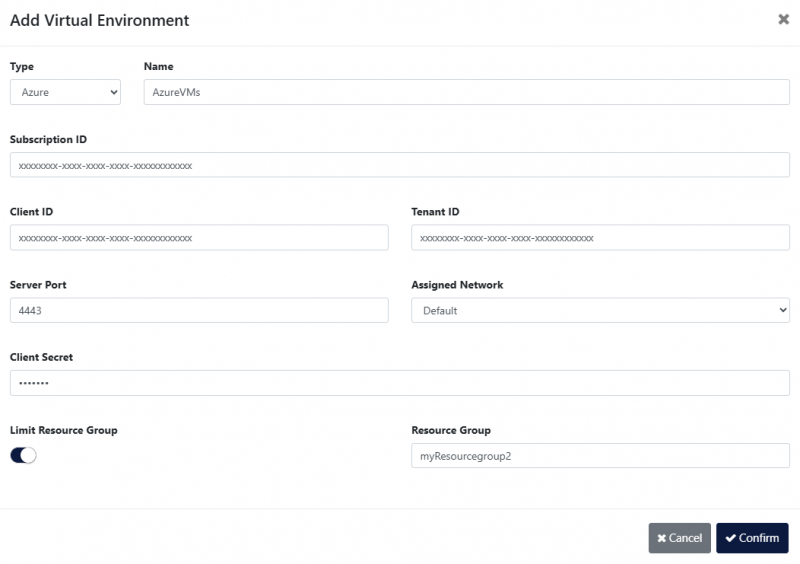
Add Virtual Environment window - Azure
- Type: The type of environment [Azure/Kubernetes].
- Name: A name for the virtual environment.
- Subscription ID: Unique ID of your Azure subscription.
- Client ID: Application ID of a service principal/app used to access Azure. Please refer to the following article for creating the Application ID: Creating Application ID and assigning required roles.
- Tenant ID: ID of the Microsoft Entra ID tenant/organization that owns the subscription.
- Server Port: TCP/UDP port the VM listens on (through the agent). Supervisor will use this port to communicate with the agent, so it should be made accessible and not blocked.
- Assigned Network: The virtual network that the virtual environment will be assigned to.
- Client Secret: Secret password for the service principal/app.
- Limit Resource Group: Enable to only display resources in the specified resource group.
- Resource Group: Logical collection that groups related VM resources. If Limit Resource Group is enabled, specify the resource group here.
Interface Groups
Interface Groups are groups of Azure VM network interfaces (NICs) monitored by Cloud TAP and used as a source of traffic to be sent to analysis tools.
Interface group creation process:
- Navigate to the Cloud TAP > Registered Clusters page.
- Click an Azure VM environment to open its details window.
- Click the Create Interface Group button.
- Set a name.
- Select which traffic direction to monitor (ingress, egress, or both).
- Select the VM NICs to include in the group.
- Click the Confirm button.
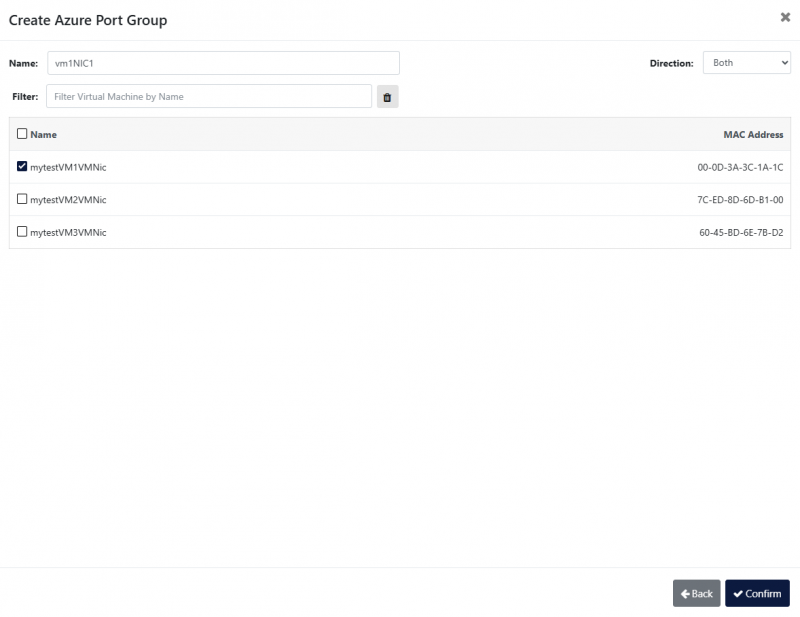
Create Azure Port Group window
Tunnel Destinations
Tunnel Destinations define where the monitored traffic from the configured interface groups will be sent, encapsulated in a GRE-TAP tunnel. This can for instance be an X2-Series device on which a Tunnel Termination port group was created, from where it can then be forwarded to analysis tools via Traffic Rules.
Tunnel destination creation process:
- Navigate to the Cloud TAP > Registered Clusters page.
- Click an Azure VM environment to open its details window.
- Click the Create Destination button.
- Set a name.
- Set a destination IPv4 address.
- Set a GRE key.
- (Optional) Enable Force MTU Size and set the desired MTU.
- Click the Confirm button.
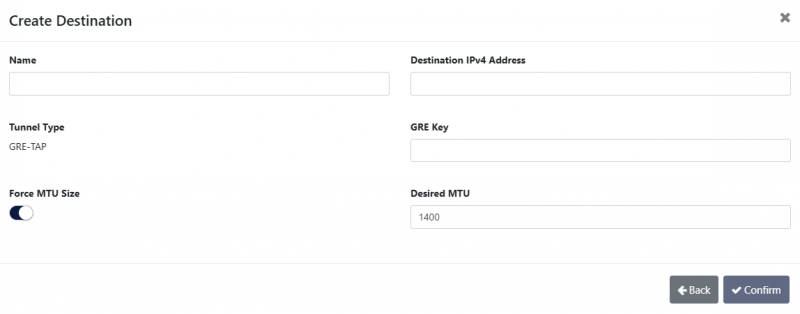
Creating a GRE-TAP tunnel destination on an Azure VM environment
You can then create Traffic Rules to send traffic from specific interface groups to the tunnel destination configured above.
To link an Azure VM environment to an X2-Series device, create a Tunnel Termination port group on that device with the same IPv4 address as the one specified above, then create an uplink between this port group and the tunnel destination configured above. You can then create Traffic Rules to send traffic from specific interface groups to any destination linked through the X2-Series device.
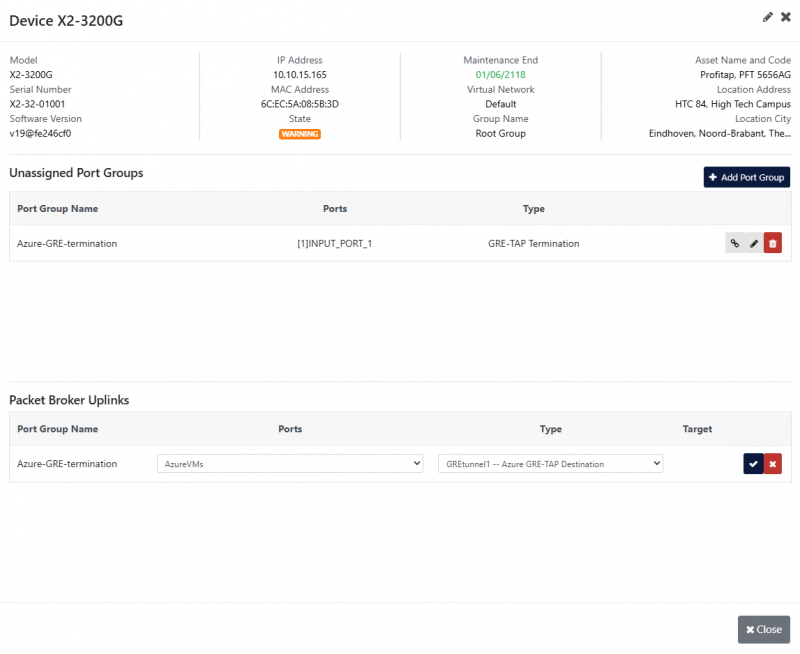
Creating an uplink between an Azure tunnel destination and a Tunnel Termination port group on an X2-Series device
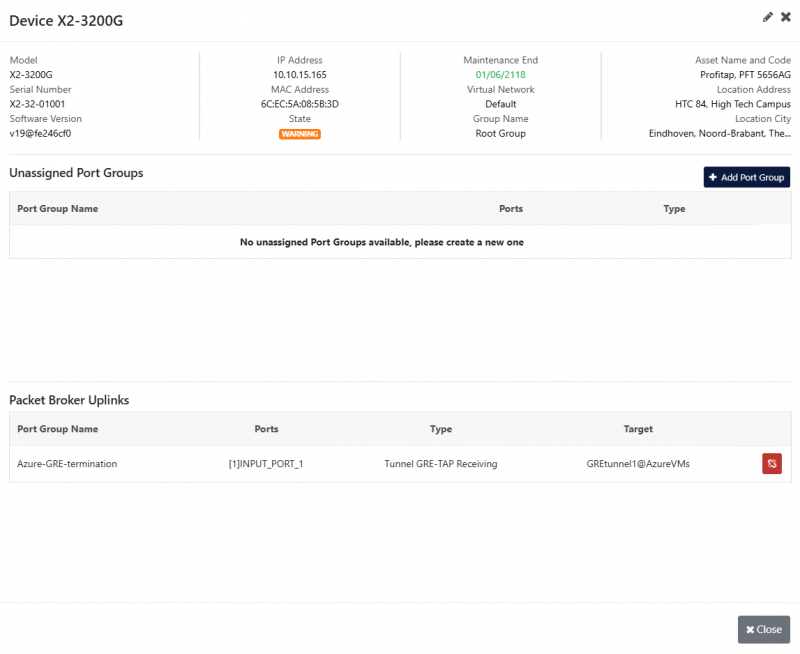
Confirming the uplink creation displays the uplink in the list of packet broker uplinks and removes the port group used from the list of unassigned port groups
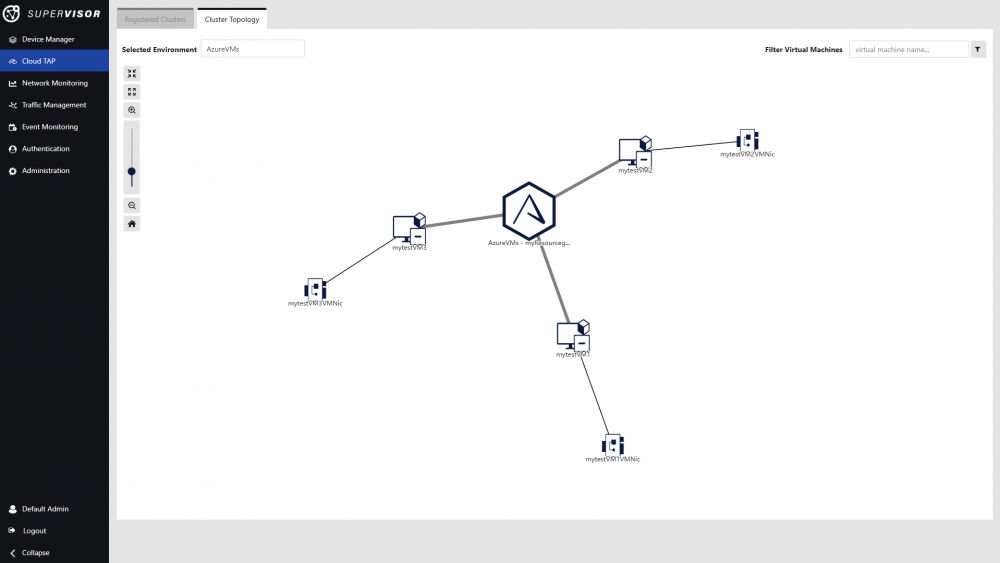
Cluster Topology
The Cluster Topology tab of the Cloud TAP page gives a view of the topology of registered Kubernetes clusters and Azure VM environments. Select the environment to view by selecting it in the Selected Environment drop-down menu in the top left corner.