Event monitoring
Event monitoring
The Event Monitoring page displays all of the events detected by the Supervisor. The events can be filtered by time range, event type, and message body, using the Filter button and selecting the filtering options. It is also possible to navigate to the device and rule set involved in the event by clicking the event description.

Event alerting
The Event Alerting page allows you to create email and webhook alerts for certain events.
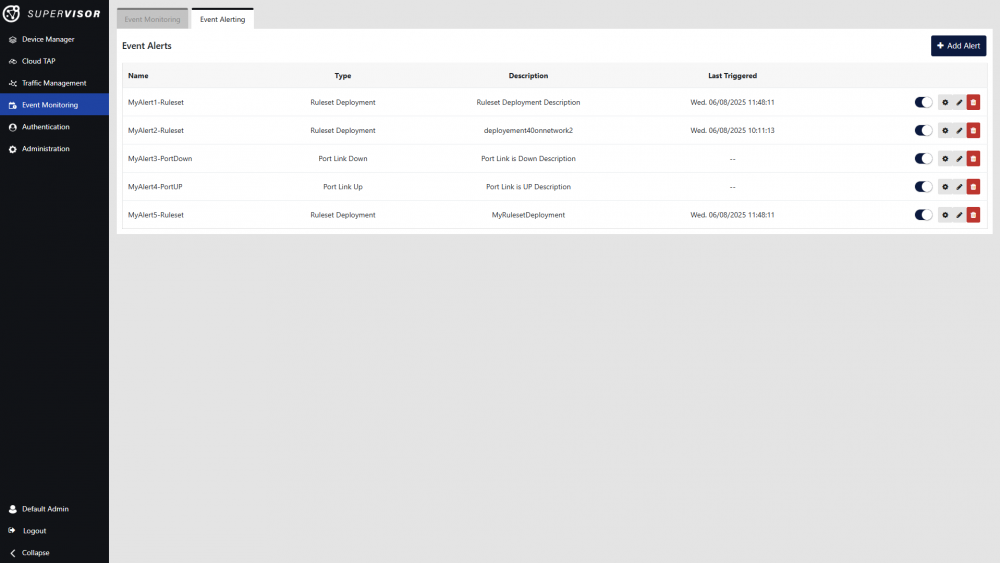
The following actions are available:
 Create an alert
 Test an alert
 Edit an alert
 Delete an alert
A toggle next to each alert also allows you to enable or disable an alert.
Clicking the Add Alert or Edit Alert button opens the following window:
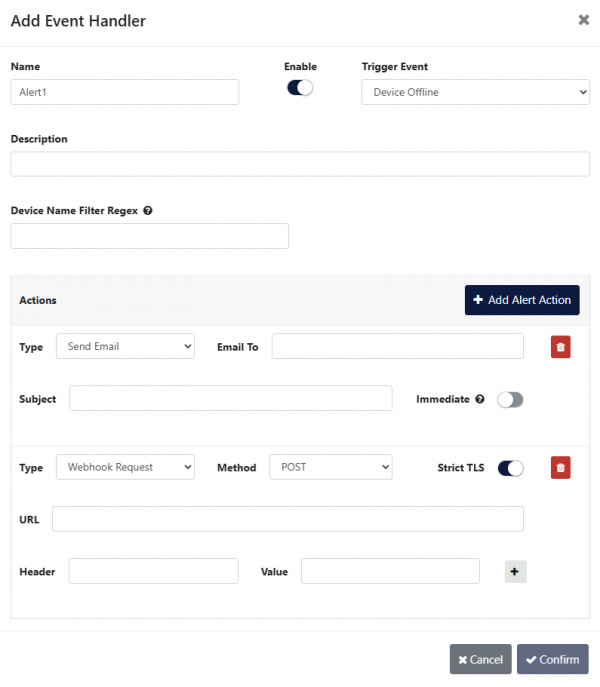
- Name: A name for this alert.
- Enable: Enable or disable the alert.
- Trigger Event: Select the type of event triggering this alert.
- Ruleset Deployment: A ruleset is scheduled for deployment.
- Ruleset Disabling: A ruleset is deactivated.
- Device Online: The device transitions to an online state.
- Device Offline: The device transitions to an offline state.
- Virtual Environment Online: The virtual environment transitions to an online state.
- Virtual Environment Offline: The virtual environment transitions to an offline state.
- Port Link Up: The port status changes to UP.
- Port Link Down: The port status changes to DOWN.
- Port Stats CRC Error: CRC errors are detected on the port. If CRC errors cease to increase, no additional events will be generated.
- Port Stats Drop: Frame drops are detected on the port. If frame drops cease to increase, no additional events will be generated.
- Port Stats DEDUP Drop: Duplicate frame drops are detected on the port due to deduplication being enabled. If duplicate frame drops cease to increase, no additional events will be generated.
- Port Stats Traffic Increase: A significant increase in traffic is detected on the port.
- Port Stats Traffic Decrease: A significant decrease in traffic is detected on the port.
- Data Usage Warning: Data usage exceeds 50%, 75%, 90%, and 95%. A separate event will be generated for each threshold that is surpassed.
Data Quota Usage can be viewed in the License Information section, accessible via Administration > Setup > License Information. - Data Quota Exceeded: Data quota usage reaches or exceeds 100%.
Data Quota Usage can be viewed in the License Information section, accessible via Administration > Setup > License Information.
- Description: A description for this alert.
- Network Name Filter Regex: Filter string to match the network(s) name(s) triggering this alert.
- Device Name Filter Regex: Filter string to match the device(s) name(s) triggering this alert.
- Device Port Filter: Comma-separated list of filter strings to match the port(s) name(s) or custom label(s) triggering this alert.
- Cluster Name Filter Regex: Filter string to match the cluster(s) name(s) triggering this alert.
- Add Alert Action: Add an action to execute when the alert is triggered.
- Type: Select the action type (Send Email/Webhook Request).
- Send Email:
- Email To: Email address to send the email alert to.
- Subject: Subject email field, used if the Immediate option is enabled.
- Immediate: If enabled, the email will be sent as soon as the event occurs. Else, the alert will be queued to be included in the next batch email.
- Webhook Request:
- Method: Specifies the HTTP method to be used for the webhook request.
Supported values: POST, PUT.
Use POST to submit data to the endpoint, or PUT to update an existing resource. - Strict TLS: Enables or disables strict TLS (Transport Layer Security) verification for secure HTTPS connections.
When enabled, the connection requires a valid, trusted SSL/TLS certificate.
Recommended: Enable for secure and trusted endpoints. - URL: Defines the full destination URL to which the webhook request will be sent.
Must begin with http:// or https:// and point to a valid, reachable endpoint. - Header: Specifies a custom HTTP header key to be included in the webhook request.
Common use cases include authorization headers, content type definitions, or custom identifiers.
Example: Authorization, Content-Type. - Value: Defines the corresponding value for the specified HTTP header.
This value is sent along with the header in the webhook request.
Example: Bearer <token>, application/json. - + button: Add a Header/Value row.
Note: SMTP server settings must be configured for email alerts to function (see SMTP server configuration).