Inline setup
The Traffic Management > Inline Setup page allows you to easily create and deploy inline traffic chains. The system will translate these configurations into traffic forwarding rules. Traffic can be sent to and received from inline tools before being sent out to output ports.
We will use the sample topology below as an example. For simplicity's sake, the connections on the image do not show the exact physical location of the ports on the packet broker. We will assume that the broker is placed between Server1 and Server2. The broker has inline tools connected to it.
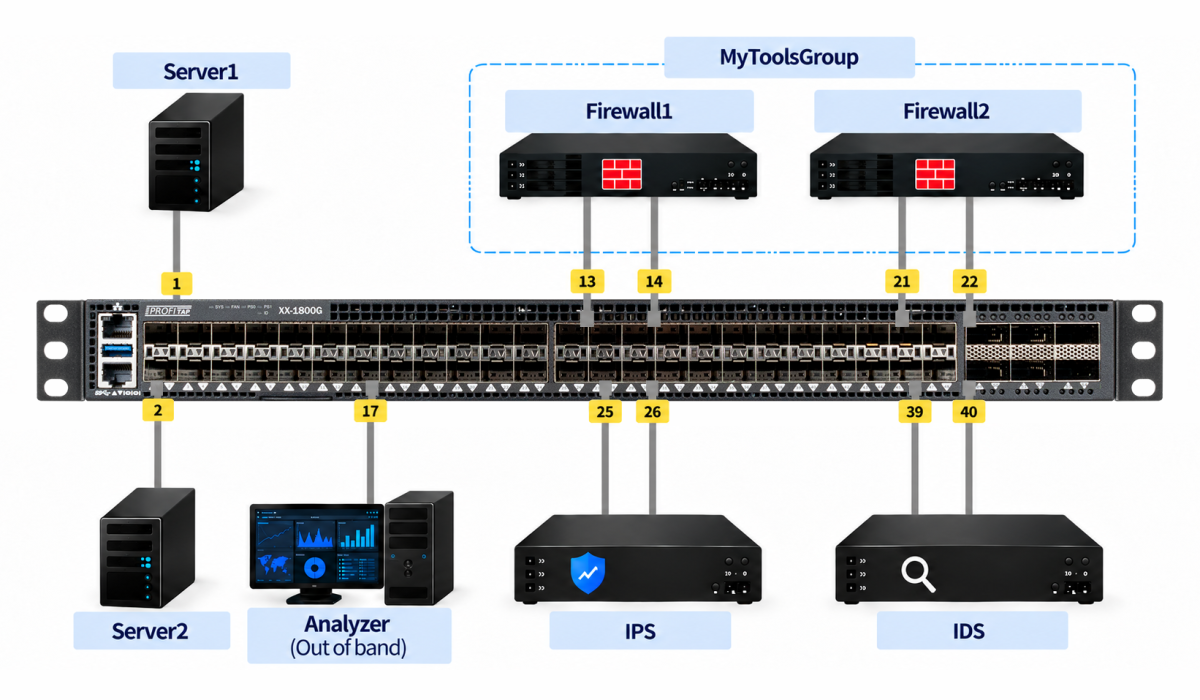
The following options are available:
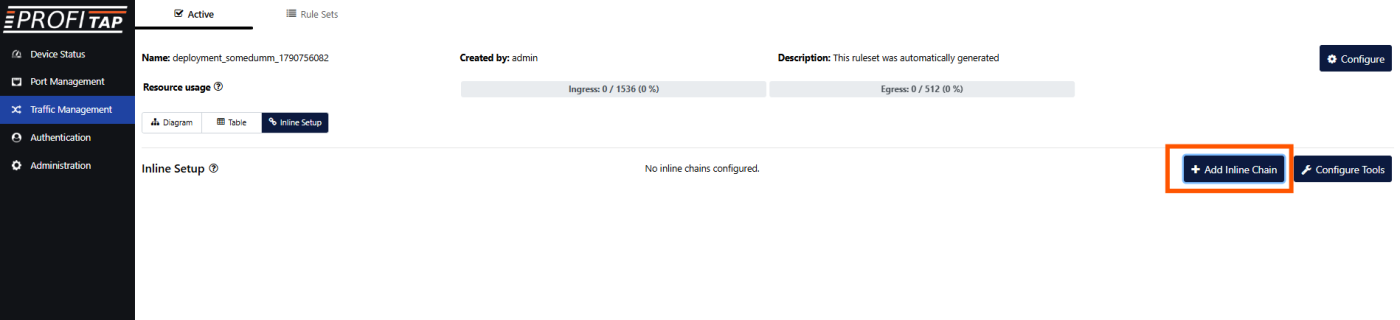
- Add Inline Chain: Create an inline chain using configured tools and tool groups.
- Configure Tools: Define tools and tool groups that will be used in inline chains.
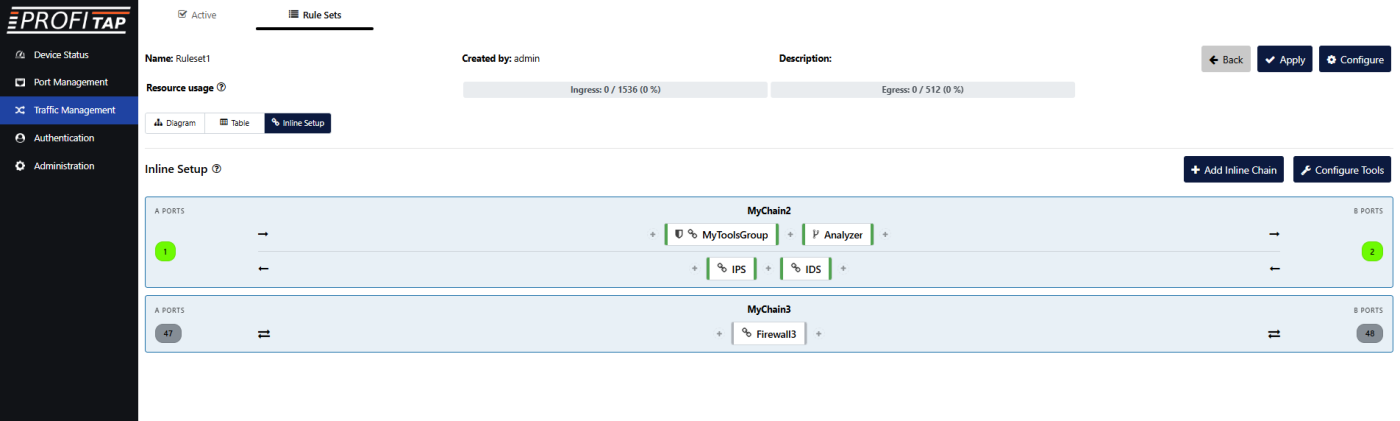
A ruleset can contain one or more chains. A chain can contain one or more tools or tool groups. A tool or a tool group can be used once within a ruleset.
Configure Tools
Before creating a chain, we must first define tools and optionally tool groups.

Create Tool
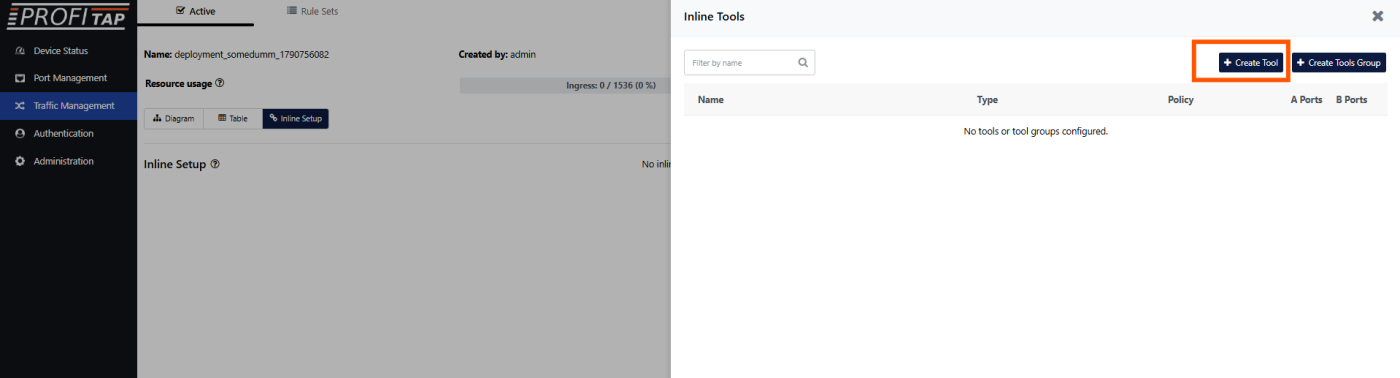
This menu is for creating individual tools.
A tool can be defined as one of two types:
- Inline: Traffic will be sent to and received from the tool, hence both A Ports and B Ports are displayed. A Ports is for traffic outgoing towards the tool, B ports is for traffic incoming from the tool.
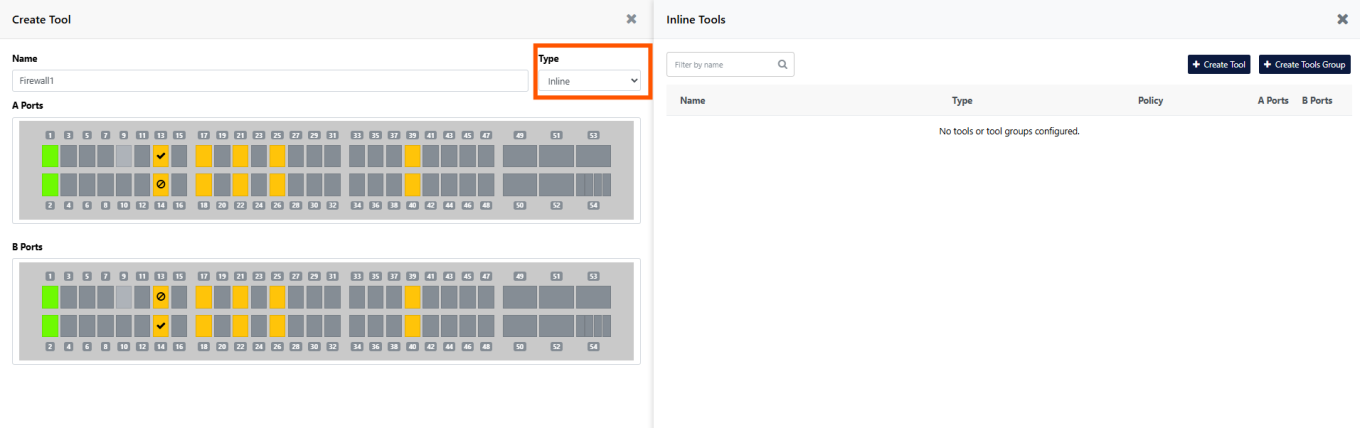
- Out of band: Traffic will be sent to the tool. There will be no traffic incoming from the tool, hence only A Ports are displayed.
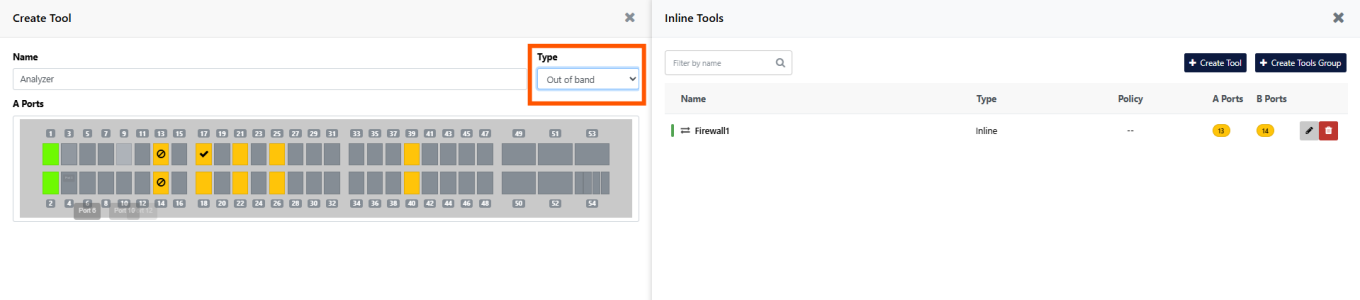
We've created a tool called Firewall1 and it now appears in the list of tools (right side of the image above). We can continue creating more tools, for example an out-of-band Analyzer tool (left side of the image above).
The line color on the left side of the tool name in the list indicates whether the tool is online (green) or offline (grey). A tool is considered online if all of its ports are up. If one or more ports are down, the tool is considered offline. This is only valid if the ruleset is the active one; when configuring a ruleset that is not currently active, all tools will show as “offline”.
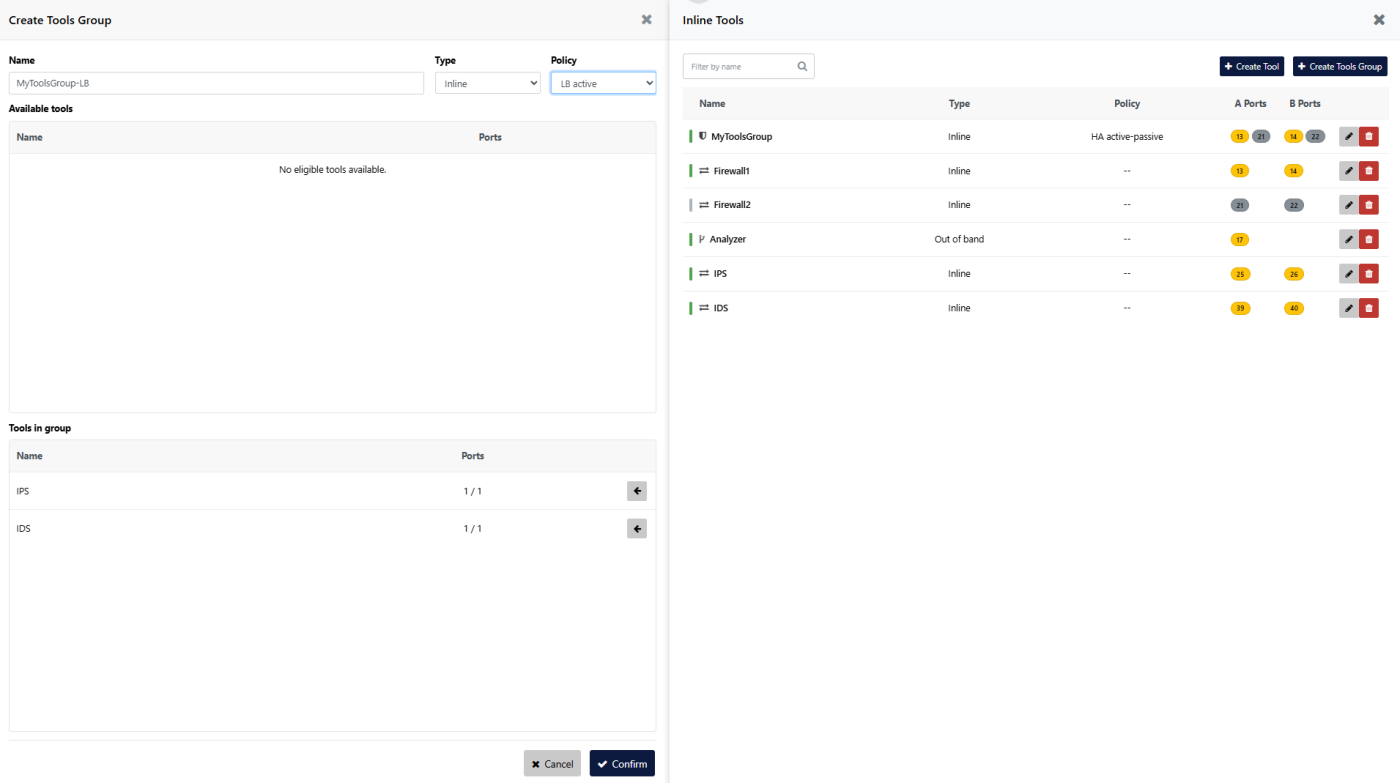
Create Tools Group
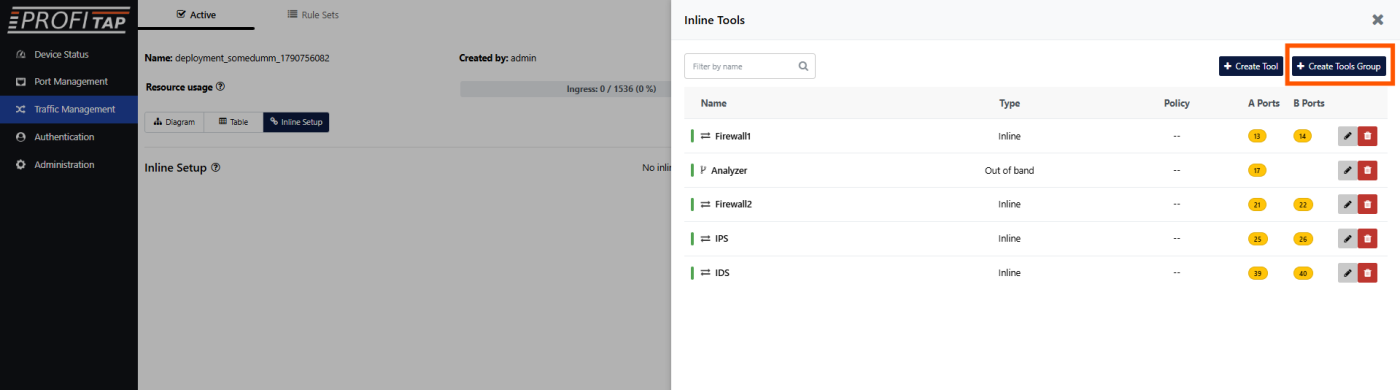
This menu is for creating groups of tools.
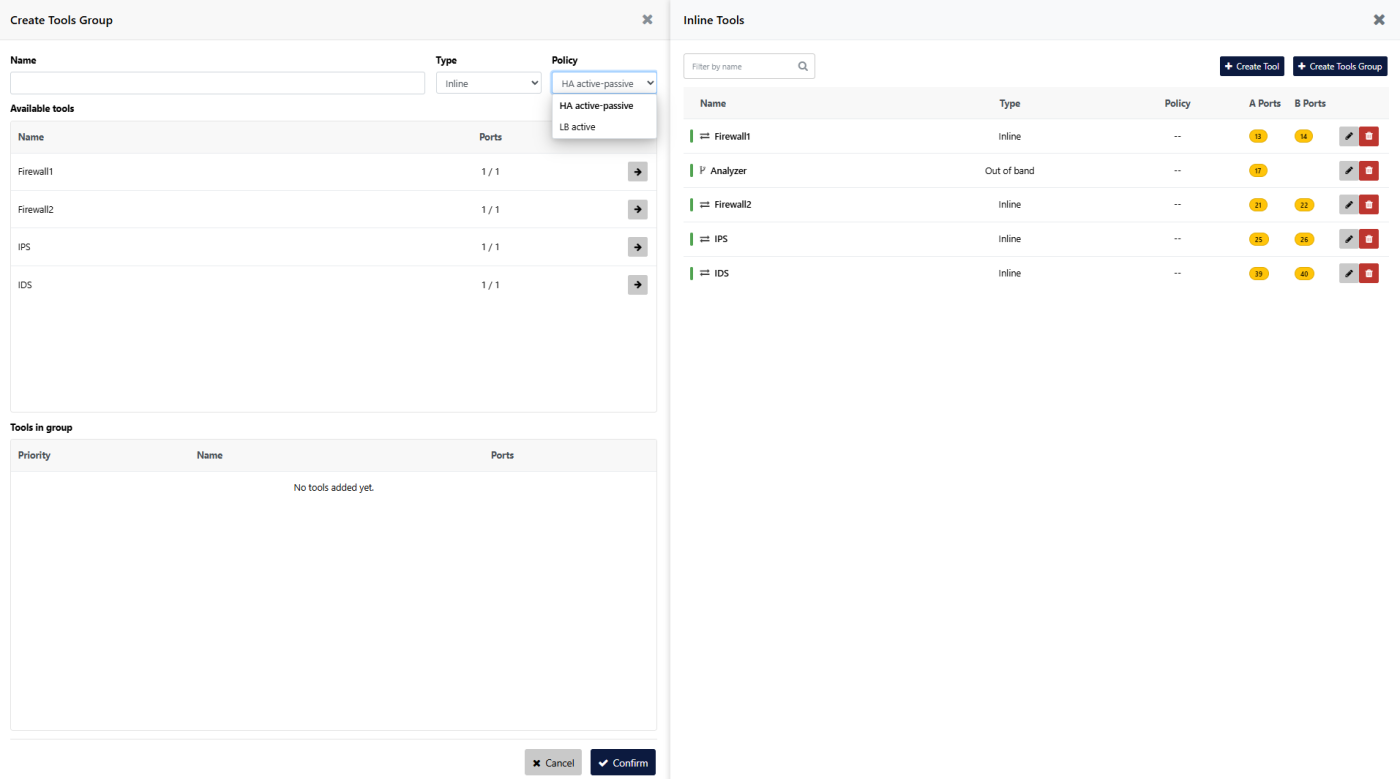
A tool group's type can be set as Inline (to group inline tools) or Out of band (to group out-of-band tools).
The group policy can be set as one of the following:
- HA active-passive: In High Availability active-passive policy, the tool with the highest priority is used. If a tool goes offline, the next one in the priority list will be used. If a tool with a higher priority than the one currently used goes online, it will be used instead. In other words, whichever tool with the highest priority is online at any given time will be used.
- LB active: The tools are load balanced. Flow-based load balancing is used.
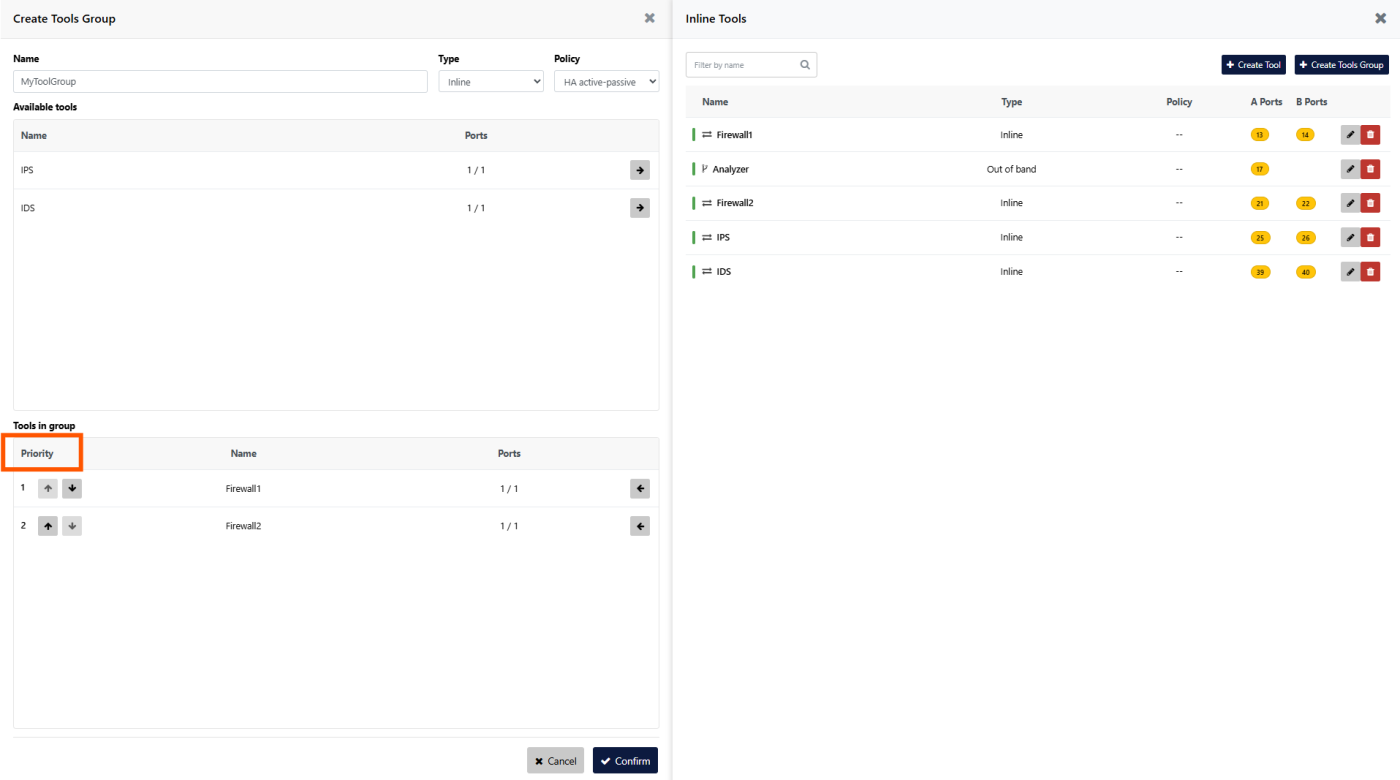
The Create Tools Group window contains the following sections:
- Available tools: The list of tools available to be used in the Tools Group. Displays tools of the same type as the group (inline/out-of-band) that are not already in another group. Clicking the right arrow button of a tool adds it to the group.
- Tools in group: The list of tools currently in the Tools Group. Clicking the left arrow button of a tool removes it from the group. If Policy is set to HA active-passive, the Priority column displays the tool priority and allows you to change it using the up and down arrow buttons.
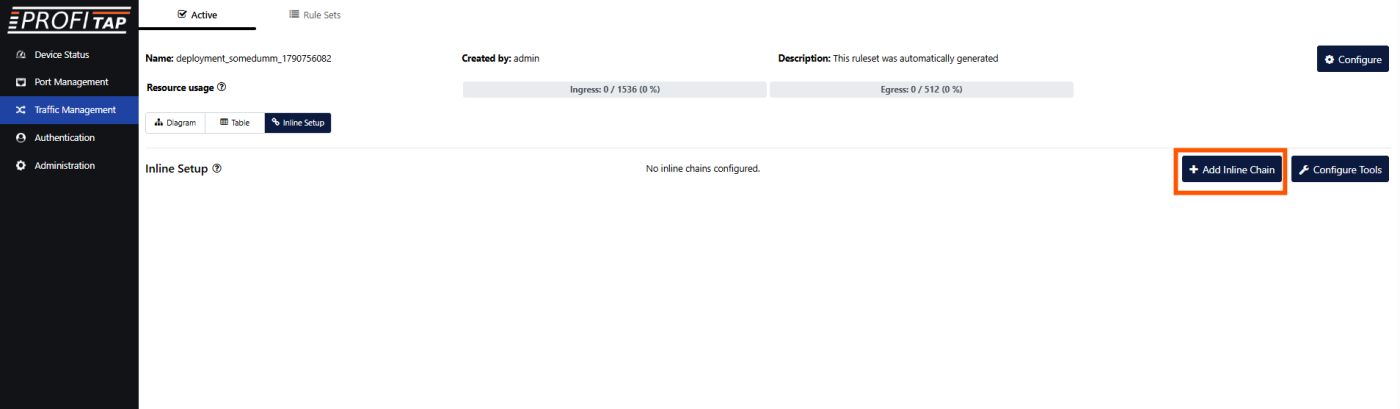
Add Inline Chain
With tools and tool groups created, we can now use them in a chain. As a first example, we will create a chain containing only tools.
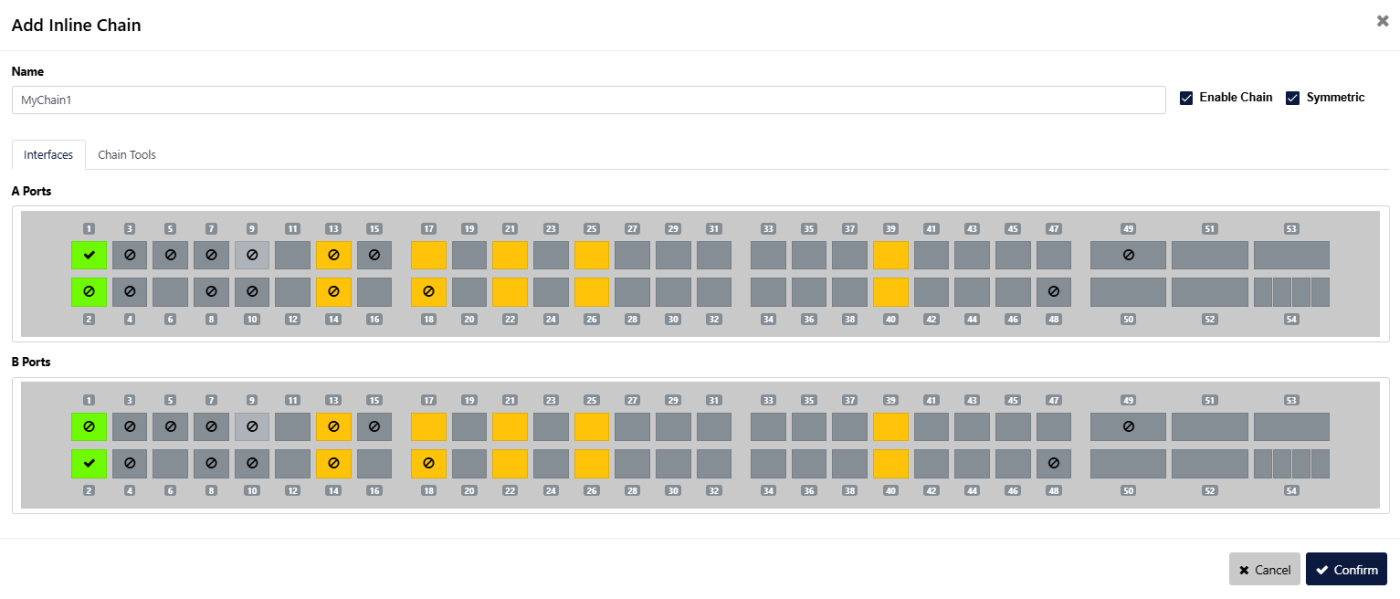
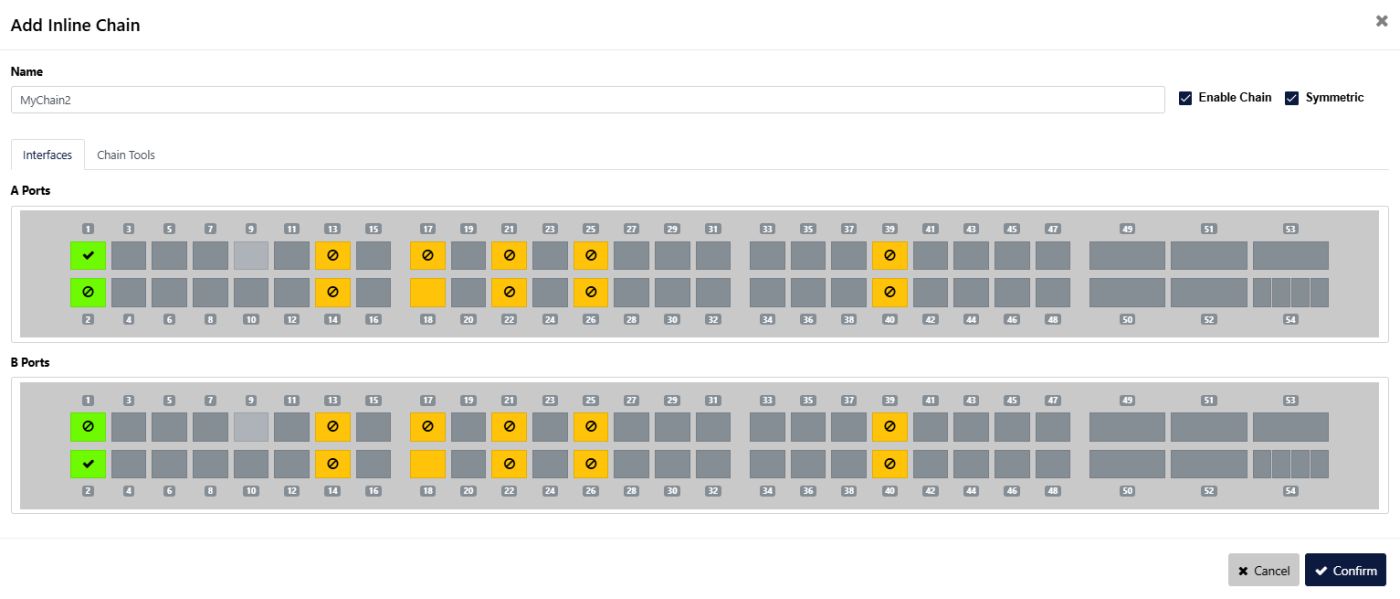
In the Interfaces tab, we can select the source and destination ports for the chain. A Ports are ports of incoming traffic, and B Ports are ports for outgoing traffic.
Here, we have set port 1 as input and port 2 as output.
The following chain options are available in the top-right corner of the window:
- Enable Chain: This will enable the chain. If disabled, traffic will not flow from A ports to B ports.
- Symmetric: Traffic in both directions will be sent through the selected inline tools. If disabled, only traffic from A to B will be sent through the selected inline tools, while traffic from B to A will not be sent through, or will be sent through a different set of inline tools we can configure later on.
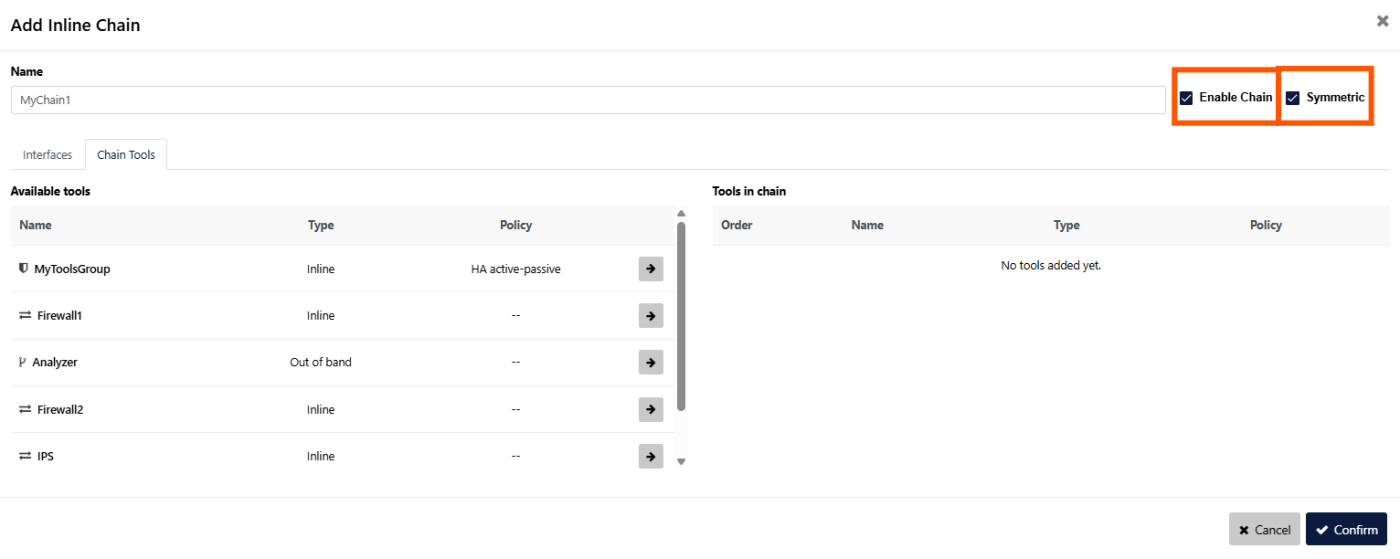
In the Chain Tools tab, we can add tools and tool groups to the chain by clicking the right arrow button of a tool or tool group in the Available tools section.
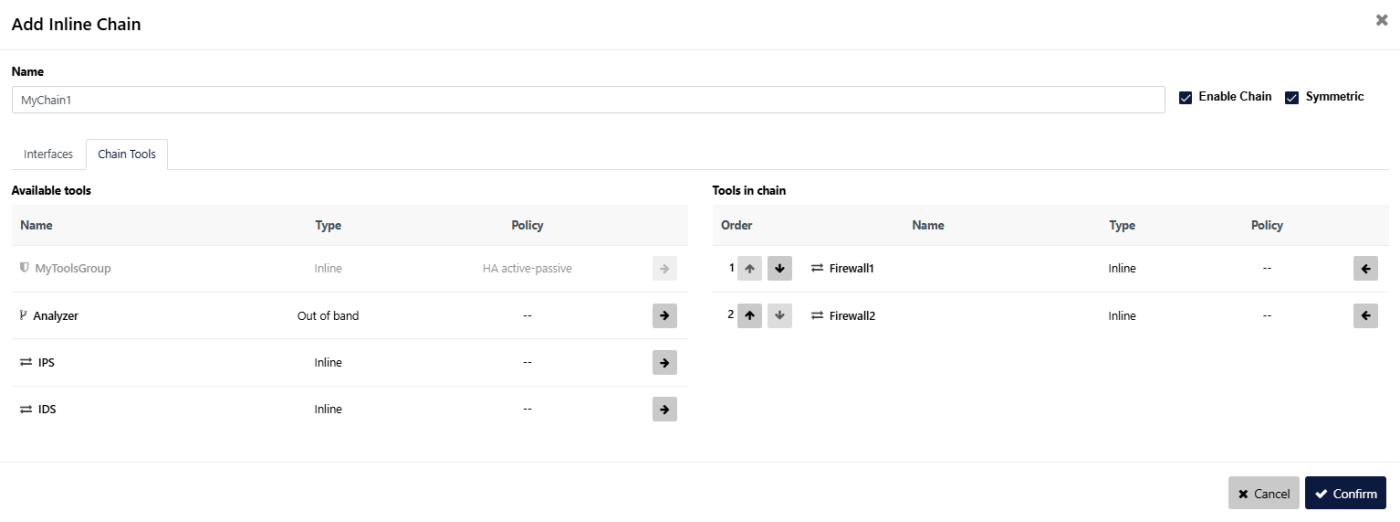
In the Tools in chain section, we can change the order of the tools and tool groups in the chain by clicking the up and down arrow buttons, and remove a tool or tool group from the chain by clicking the left arrow button.
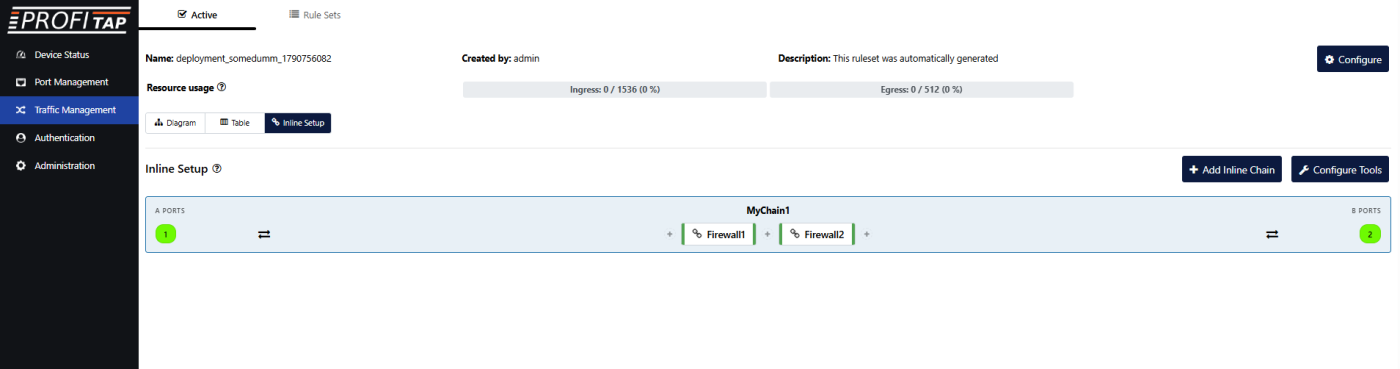
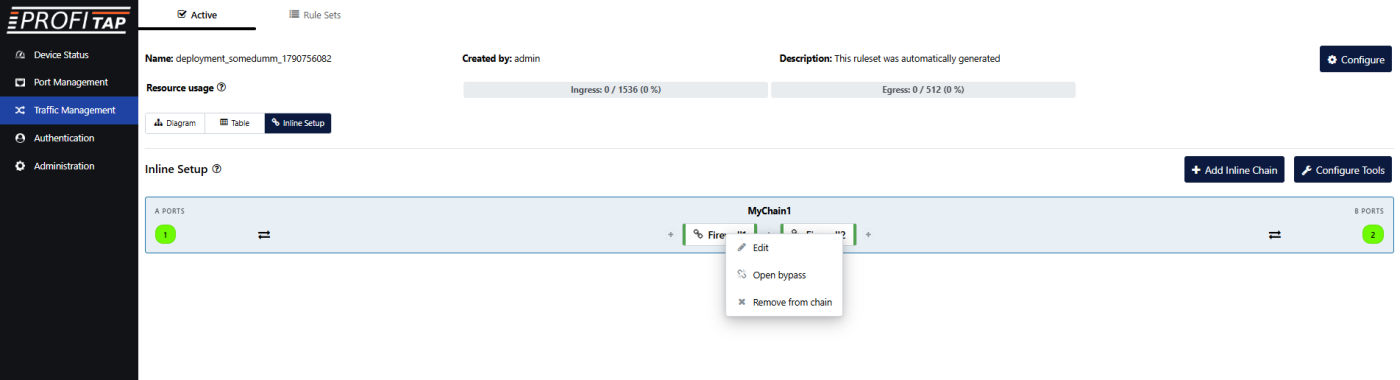
A bypass feature is available to control the behavior of the chain should a tool or tool group go offline. It can be enabled on individual tools and tool groups by right-clicking them and selecting Open bypass.
The behavior is as follows:
 Bypass disabled (default): If the tool goes offline, traffic stops flowing at that point in the chain. Tools up the chain will still receive traffic, but tools and output ports down the chain will not.
 Bypass enabled: If the tool goes offline, traffic keeps flowing through the chain, bypassing the offline tool.
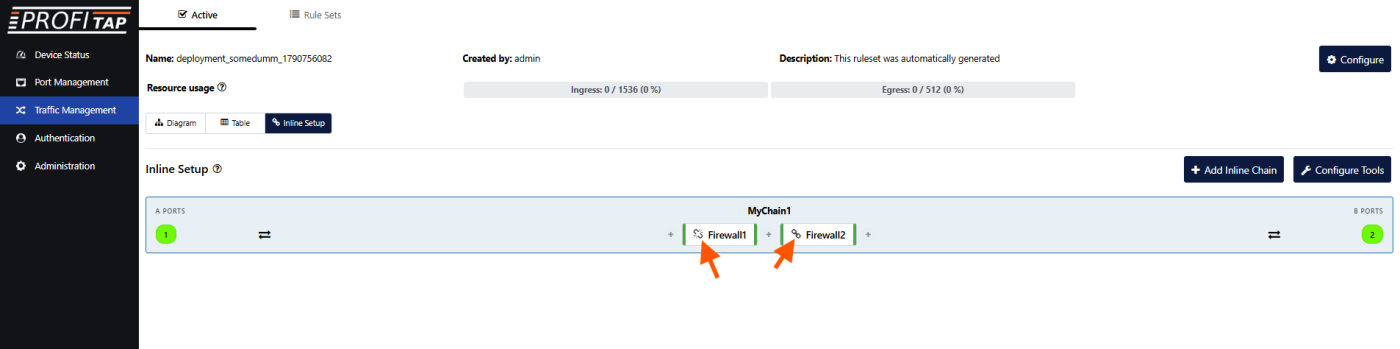
The icon on the left of the tool or tool group name indicates its bypass status, with an open chain indicating bypass enabled, and a closed chain indicating no bypass.
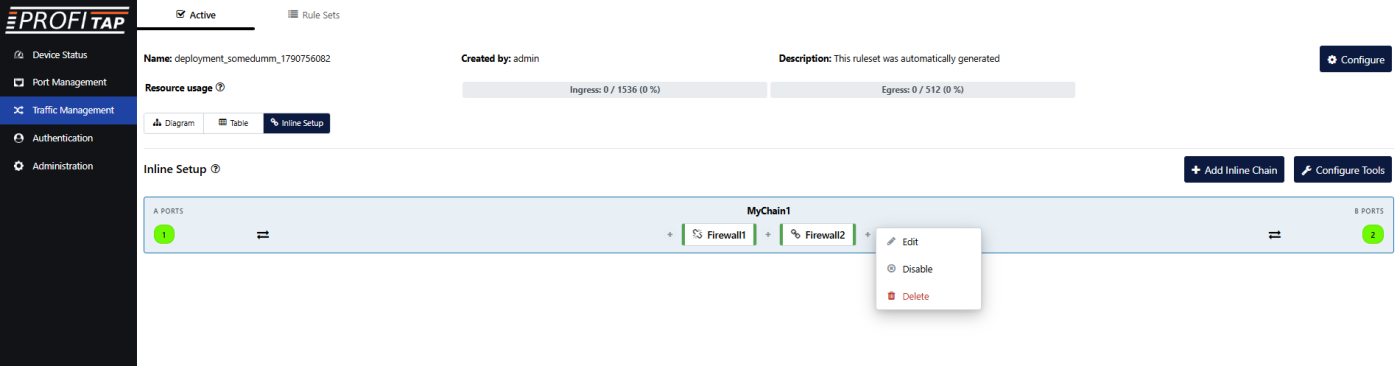
Right-clicking a chain allows you to edit it, disable/enable it, or delete it.
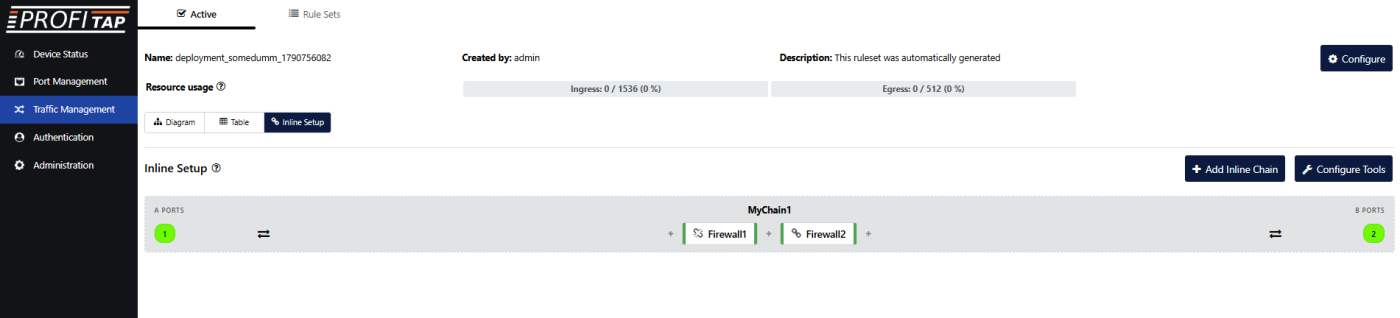
Tools and tool groups can be added at a specific place in an existing chain by clicking one of the + icons.
As another example, we will create a chain containing a tool group.
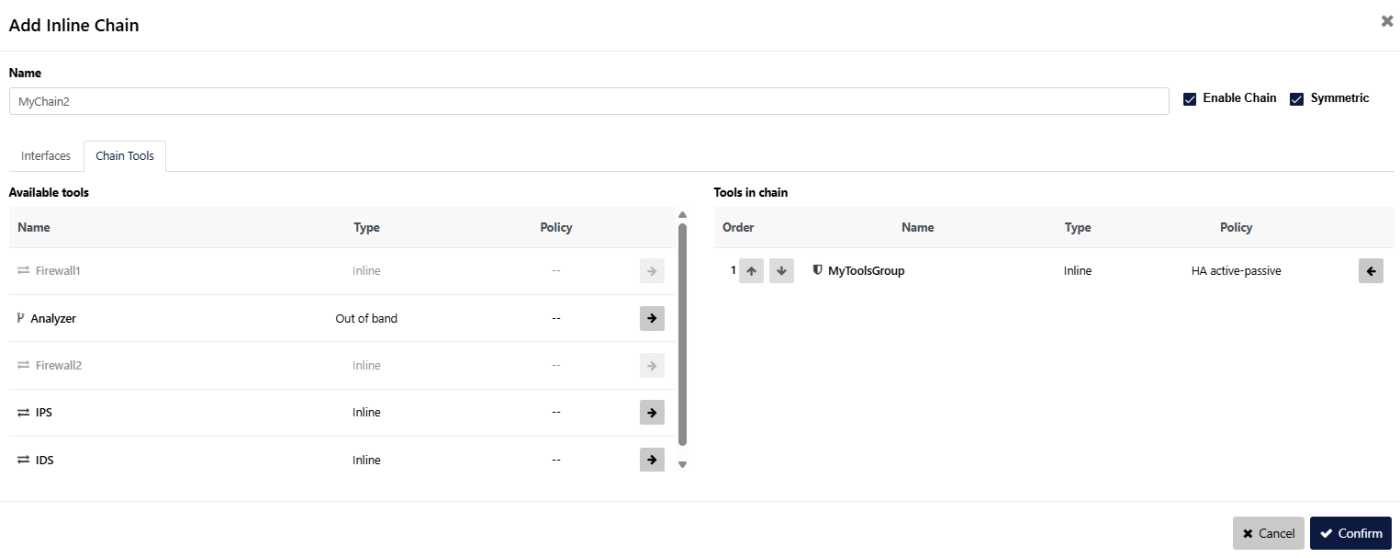
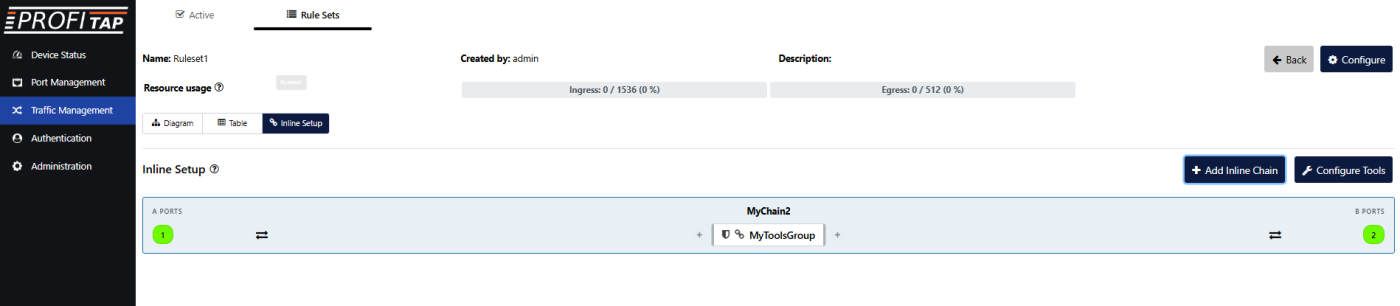
Inline chain set as symmetric, containing a tool group:
Inline chain set as asymmetric, containing a tool group:
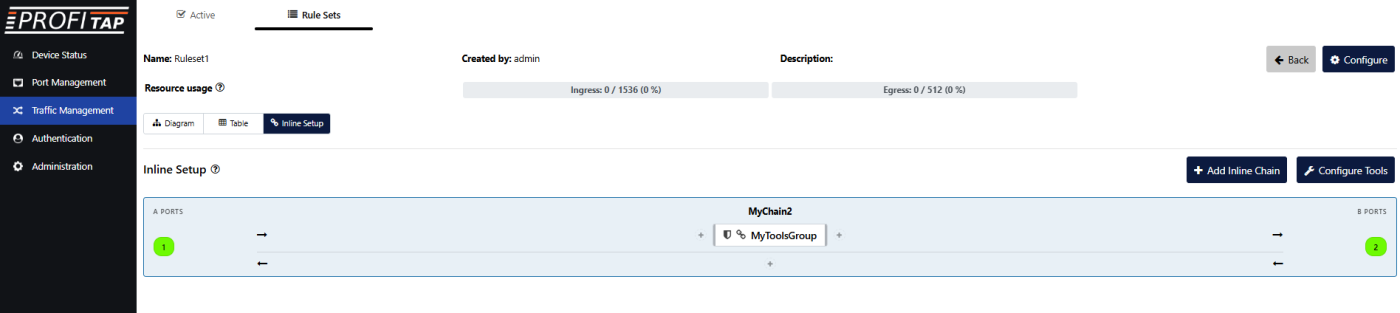
When a chain is set as asymmetric, a different set of tools can be assigned in the direction from B to A than the one from A to B.
Below is an example of an asymmetric chain. The grey bars on the sides of the tools and tool groups indicate that they are offline (if the ruleset being configured is not the active one, tools and tool groups will always show as offline).
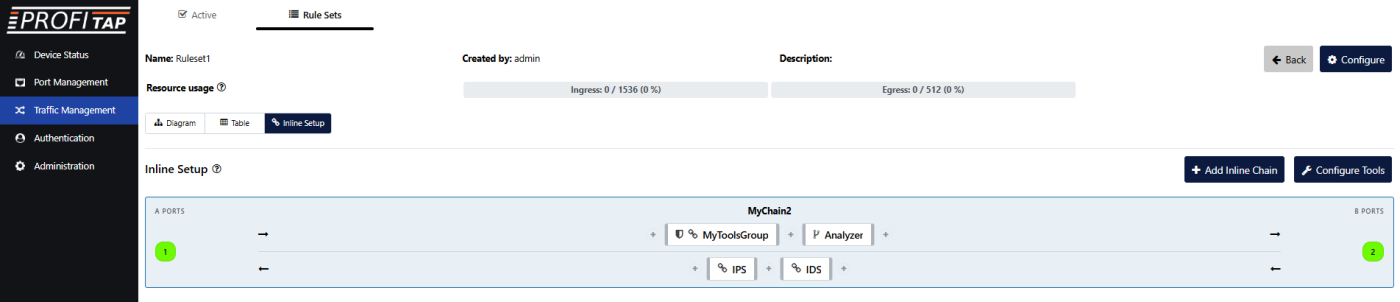
Below is an example of an asymmetric chain, this time with green bars on the sides of the tools and tool groups, indicating that they are online.
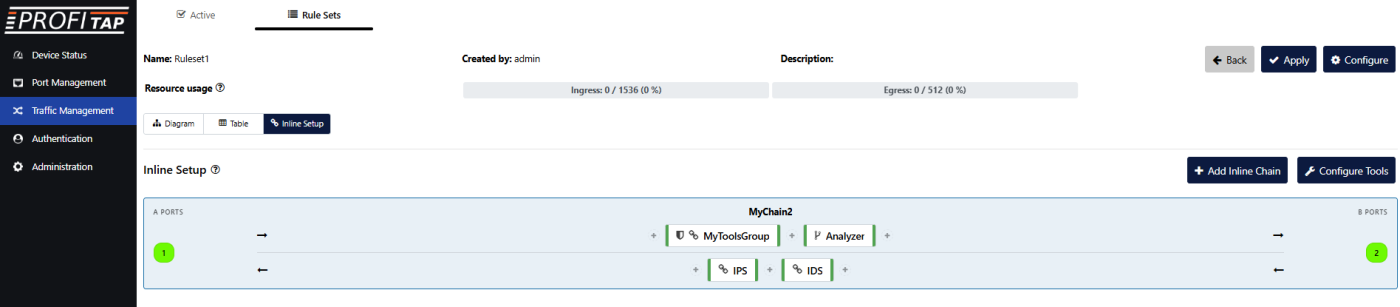
More than one chain can be configured within a ruleset, as illustrated below.