Creating a traffic rule
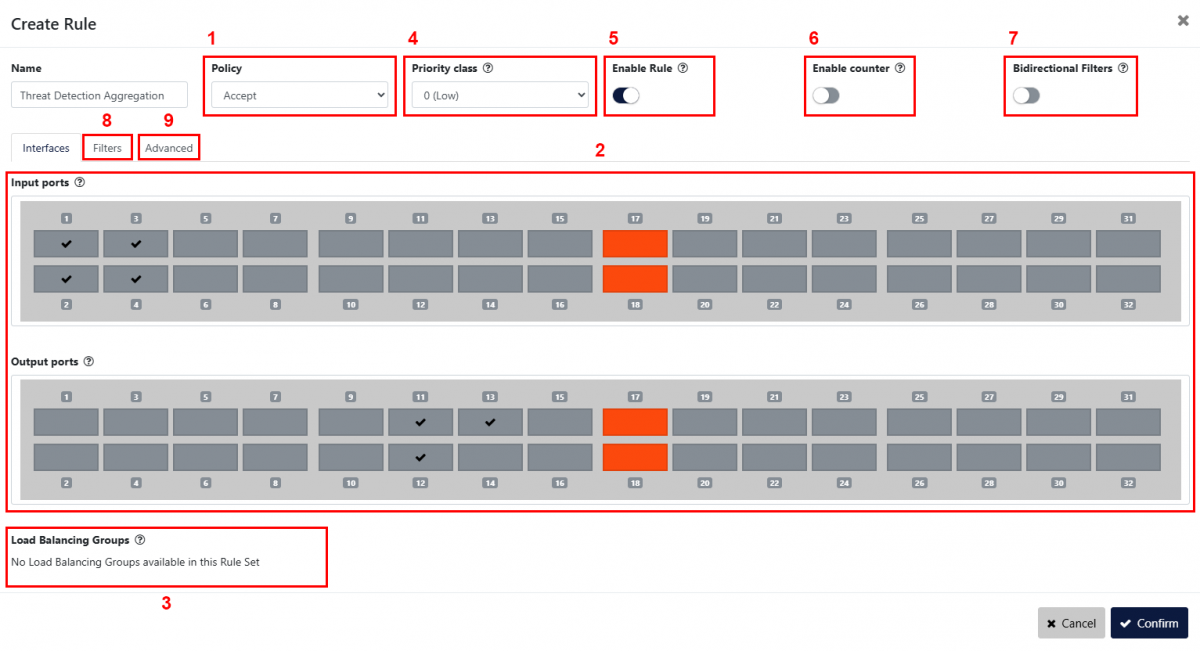
The first step in creating a new rule is defining the behavior of that rule [1]. The possible options are:
- Accept: Only traffic matching the defined filters will be forwarded;
- Drop: Traffic matching the defined filters will be removed from the stream.
The Input ports and Output ports sections [2] define which ports will be used as source for the traffic stream, and which ports will be used as destination.
⇒ When selecting multiple input ports, the traffic incoming on these interfaces will be aggregated (N:1 configuration).
⇒ When selecting multiple output ports, the traffic stream to these interfaces will be replicated (1:M configuration).
⇒ If multiple inputs and outputs are selected, the device will first aggregate the incoming traffic and then replicate the resulting stream to all of the selected output ports (N:M configuration).
If load balancing groups have been created, they appear in the Load Balancing Groups section [3]. Selecting one or more groups here will set them as output, in which case output interfaces won't need to be selected in the section above. Selecting multiple load balancing groups will replicate the traffic to each of these groups.
The Priority class option [4] can be used to create a filtering hierarchy. This feature can be used to define complex configurations, in which the user wants to create exception cases within drop or allow filters. The device supports six priority classes, which are processed from 5 (highest priority) to 0 (lowest priority). Note that, within the same priority class, rules dropping traffic always have the priority over rules allowing traffic.
The Enable Rule option [5] can be used to enable and disable the rule at will.
The Enable counter option [6] can be enabled to start a counter monitoring the amount of packets matching the defined filter. These counters will be displayed in the Frame Match column of the Active tab's Rules table.
Enabling the Bidirectional Filters option [7] will make the rule match traffic in both directions by swapping source and destination fields (MAC, IP, and L4 port filters).
The Filters tab [8] allows the user to configure the way in which traffic is targeted, according to specific rules related to its L2, L3 and L4 packet headers. See Filters.
Note: If multiple filter fields are configured, only packets matching all filters will be targeted.
The Advanced tab [9] allows the configuration of options that can be applied to the traffic in outbound, as well as advanced filtering. See Advanced.
Filters

Ethernet Layer
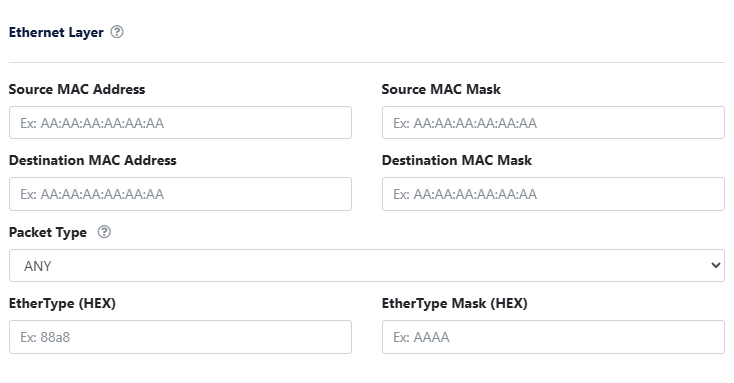
Only frames matching MAC details configured in this section will be targeted (Source/Destination MAC Address, Source/Destination MAC Mask), with the possibility to select the Packet Type (ARP, IP Address Groups, IPv4, IPv6, ARP, TCP (IPv4/6), UDP (IPv4/6), SCTP (IPv4/6), Custom Protocol (IPv4/6), or any).
If Bidirectional Filters is enabled, the specified source and destination MAC addresses will be matched in both directions.
IPv4 Layer
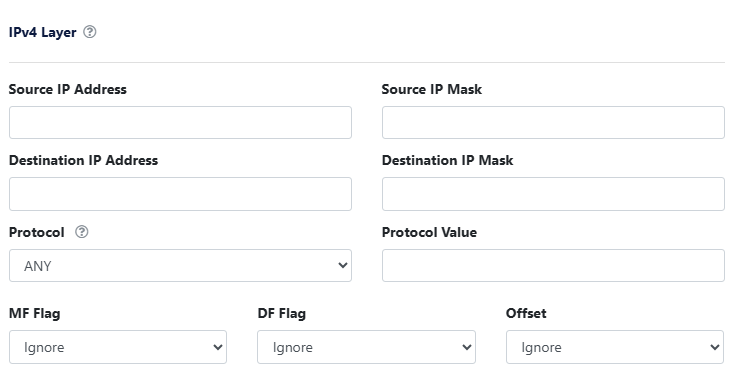
When IPv4 is selected in Packet Type, the board will filter for any packet of those types. In order to filter for the IPv4 details, the user needs to fill in the related fields (Source/Destination IP Address, Source/Destination IP Mask).
If Bidirectional Filters is enabled, the specified source and destination IP addresses will be matched in both directions.
The Protocol setting allows the user to restrict the traffic to a specific type of L4 header (TCP, UDP, SCTP, ICMP, IGMP). Any allows filtering on a custom EtherType by typing it in the Protocol Value field, or none by leaving it empty.
MF Flag [Ignore/ON/OFF], DF Flag [Ignore/ON/OFF] and Offset [Ignore/ZERO/Non-ZERO] allows filtering on these IPv4 header fields.
IPv6 Layer
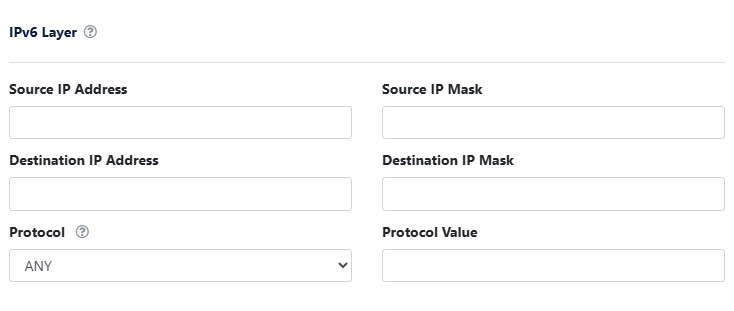
When IPv6 is selected in Packet Type, the board will filter for any packet of those types. In order to filter for the IPv6 details, the user needs to fill in the related fields (Source/Destination IP Address, Source/Destination IP Mask). IPv6 Source and Destination Addresses filtering is only possible if the Rule Set is configured with IPv6 Source/Destination Address Filter (Configure button on the Rule Set page).
If Bidirectional Filters is enabled, the specified source and destination IP addresses will be matched in both directions.
The Protocol setting allows the user to restrict the traffic to a specific type of L4 header (TCP, UDP, SCTP, ICMP, IGMP). Any allows filtering on a custom EtherType by typing it in the Protocol Value field, or none by leaving it empty.
IP Address Groups

When IP Address Groups is selected in Packet Type, it is possible to define groups of source and destination IP addresses to filter on.
Click the IP Address Groups Configuration button to create groups of IPv4 or IPv6 addresses, either using a list (comma-separated), range, subnet CIDR, or netmask. Once created, select the groups in Source and Destination.
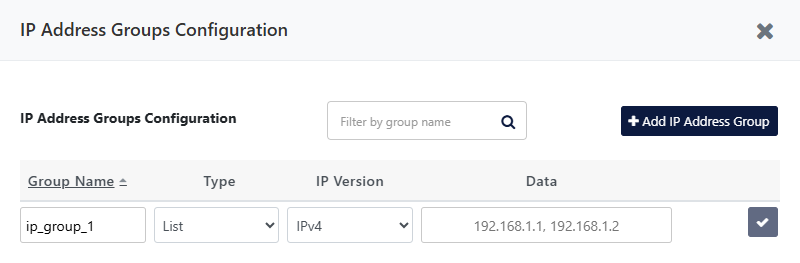
If Bidirectional Filters is enabled, the specified source and destination IP addresses will be matched in both directions.
The Protocol setting allows the user to restrict the traffic to a specific type of L4 header (TCP, UDP, SCTP, ICMP, IGMP). Any allows filtering on a custom EtherType by typing it in the Protocol Value field, or none by leaving it empty.
TCP/UDP/SCTP Layer

When TCP/UDP/SCTP is selected in Protocol, only packets matching the transport layer details configured in this section will be filtered.
Click the L4 Ports Group Configuration button to create L4 port groups, either by using a list (comma-separated) or a range. Once created, select the groups in Source and Destination.
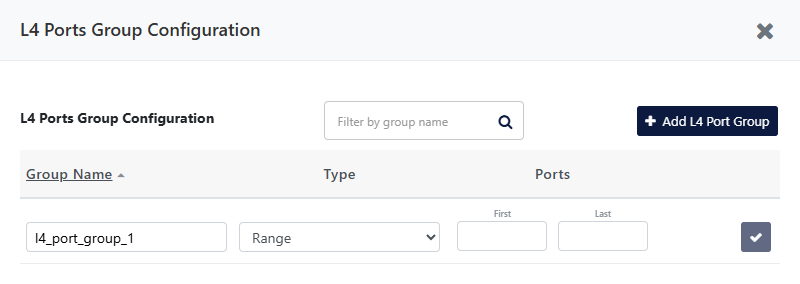
If Bidirectional Filters is enabled, the specified source and destination ports will be matched in both directions.
VLAN Tags

This can be used for filtering on outer and inner VLAN ID.
Click the VLAN ID Group Configuration button to create VLAN ID groups, either by using a list (comma-separated) or a range.

Once created, select the groups in Outer VLAN ID and Inner VLAN ID. The selections cannot overlap.
MPLS Labels
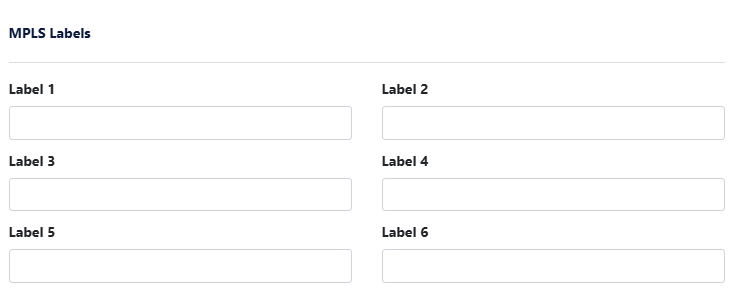
This section can be used to filter on MPLS labels. Up to six MPLS labels can be specified. Note that each label will match only with the one in the specified position. This option is only available if the Rule Set is configured with MPLS Labels 1 to 6 Filter enabled (Configure button on the Rule Set page).
Advanced
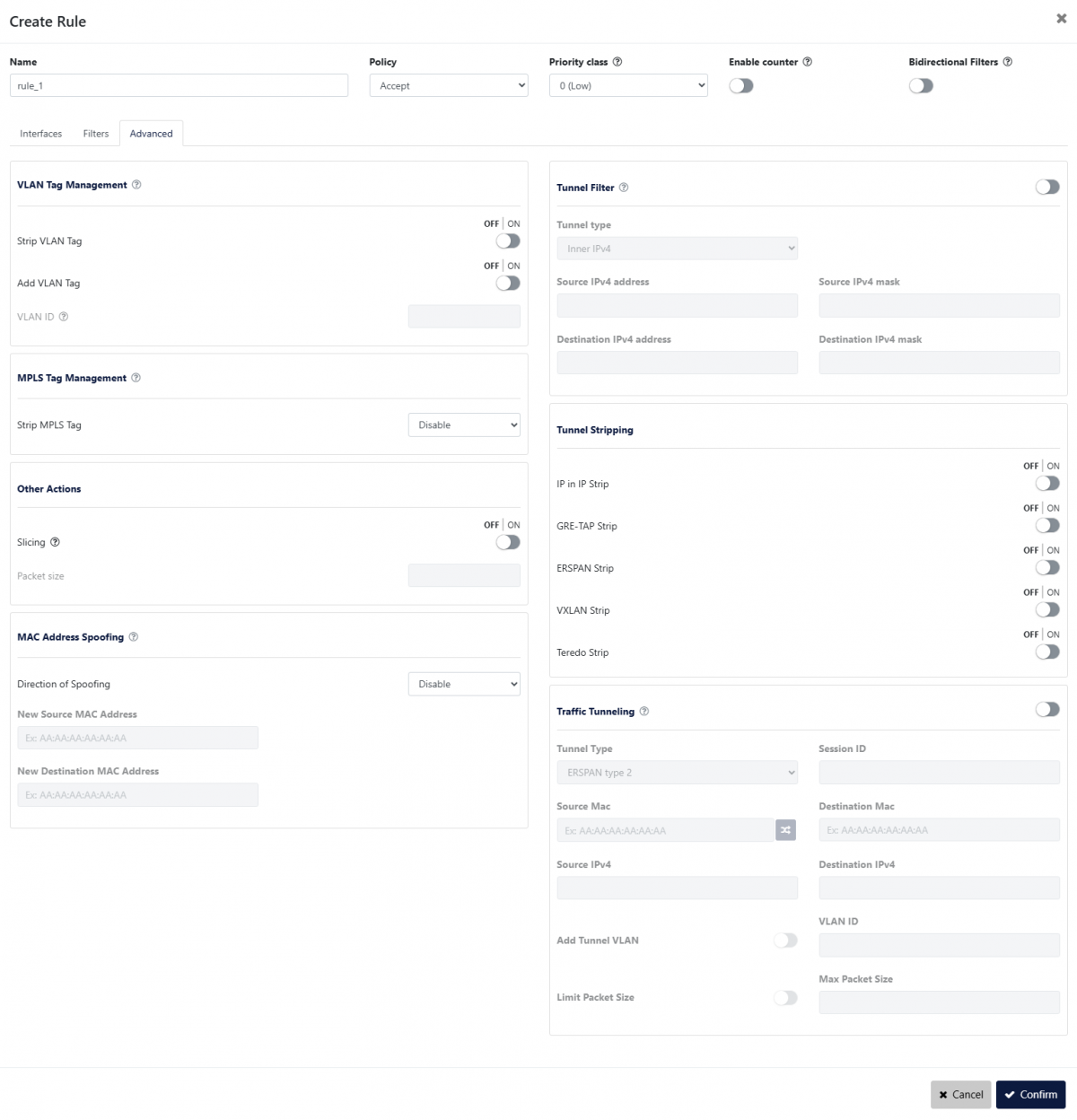
Strip VLAN Tag/Add VLAN Tag
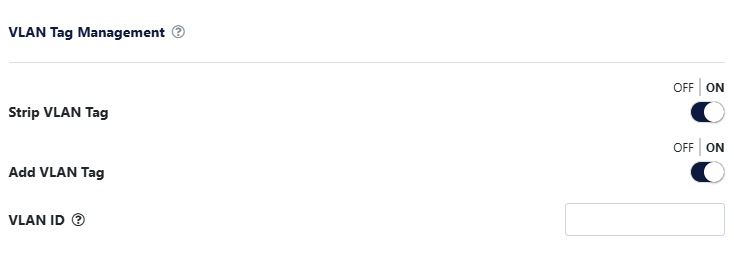
A VLAN header with the specified VLAN ID can be added. The new tag is always added externally. Packet EtherType fields are guaranteed to be updated automatically.
If Strip VLAN Tag is enabled, the outer VLAN tag is removed. If both Strip VLAN Tag and Add VLAN Tag are enabled at the same time, the external VLAN ID tag will be replaced with the one specified.
Strip MPLS Tag

Select Strip Single Label to remove the outer MPLS label or Strip All Labels to remove all MPLS labels in all packets passing through the rule.
Slicing
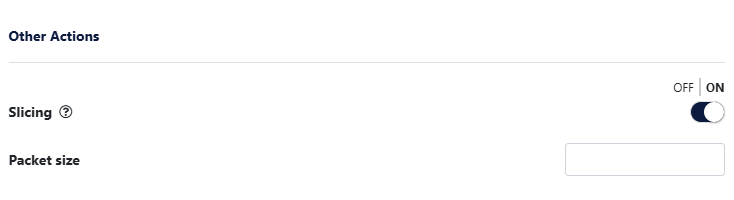
Truncates the packets to the specified size (between 64 and 9215 bytes).
MAC Address Spoofing
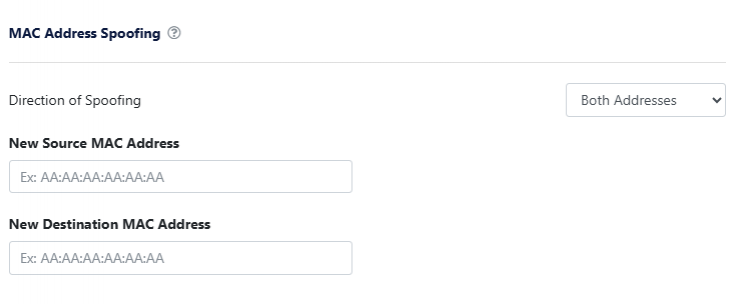
This function allows the source and/or destination MAC addresses to be replaced with the specified ones.
A Packet Timestamp option is also available, which replaces the source MAC address with the lower 48 bits of a 64-bit nanosecond timestamp. This is a low-overhead approach to get nanosecond timestamps in your packets without using ERSPAN type 3 tunneling, allowing you to do accurate estimations of delta times, jitter, etc.
Tunnel Filter
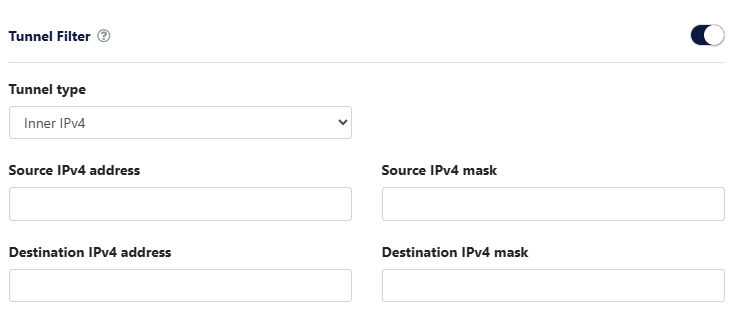
Filter traffic encapsulated in the following tunneling protocols:
- Inner IPv4: Filter traffic based on inner IPv4 encapsulated in the following tunneling protocols: IP in IP, GTP, GRE L3.
- VXLAN: Filter VXLAN traffic based on VNI value. Use “VNI mask (hex)” for bulk VNI values.
- ERSPAN: Filter ERSPAN traffic based on Session ID. Use “Session ID mask (hex)” for bulk session IDs.
Tunnels Stripping
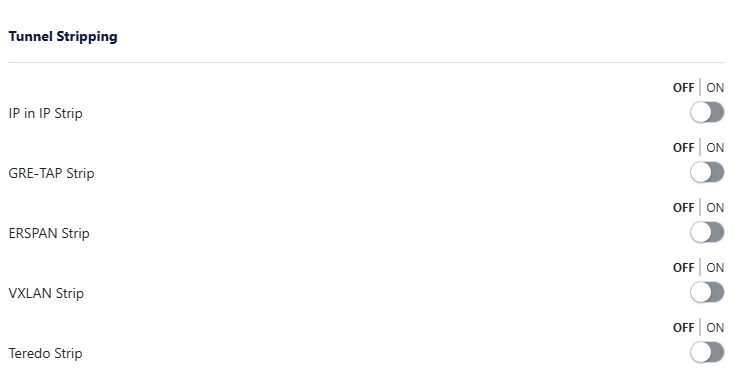
Allows the user to remove tunnel headers for the following protocols:
- IP in IP;
- GRE-TAP;
- ERSPAN;
- VXLAN;
- Teredo.
Traffic Tunneling
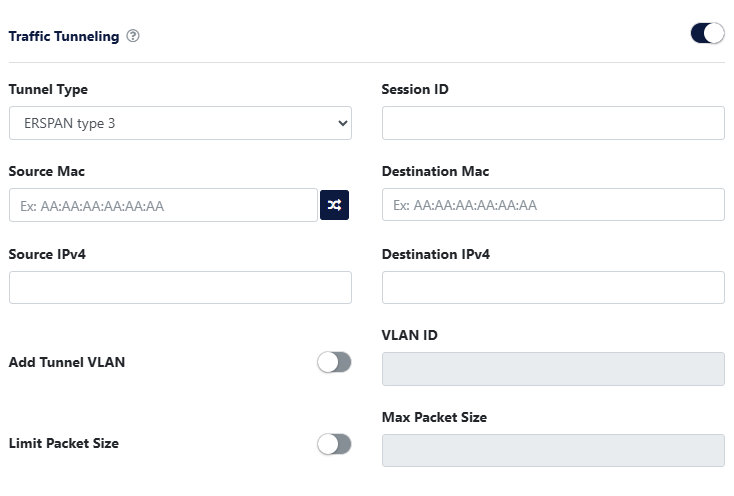
Encapsulate the traffic passing through the rule in an ERSPAN type 2, ERSPAN type 3, or GRE tunnel. The address fields and optionally the tunnel VLAN used in the tunnel must be specified.
If ERSPAN type 3 tunnel is selected, the packets will also include a nanosecond precision timestamp. It is also possible to truncate the tunneled traffic by specifying the maximum size for each packet in bytes.