Dashboards
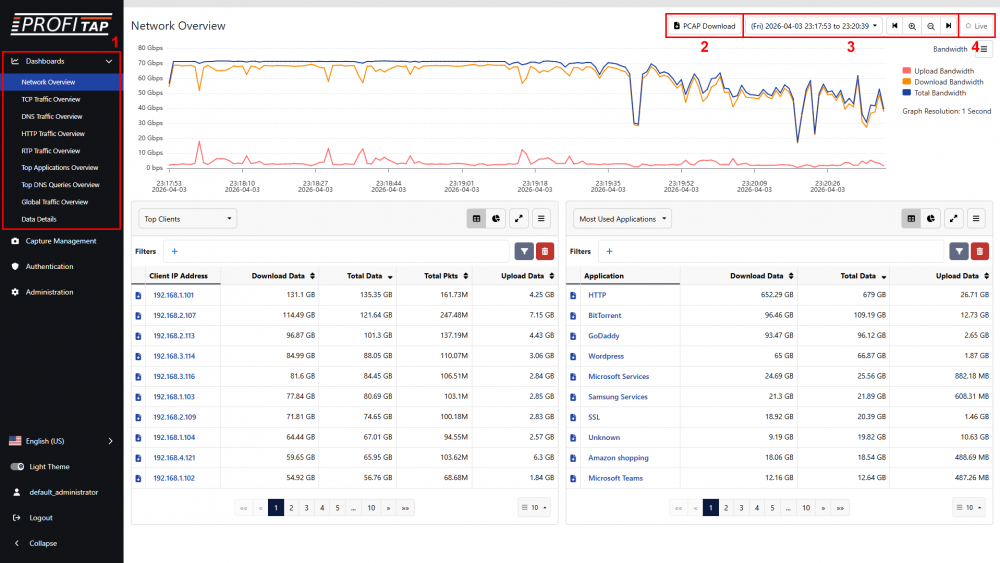
Network Overview dashboard - Bandwidth view
IOTA's analysis dashboards allow you to explore metadata extracted from captured traffic.
[1] The main menu allows you to navigate between the different dashboards.
[2] The PCAP Download button allows you to download the raw data for the selected time range and filters in PCAPNG file format.
[3] The time range can be selected in the top-right corner of the screen.
[4] The Live button allows you to enable or disable the automatic refreshing of the dashboard with new captured data.
Network Overview
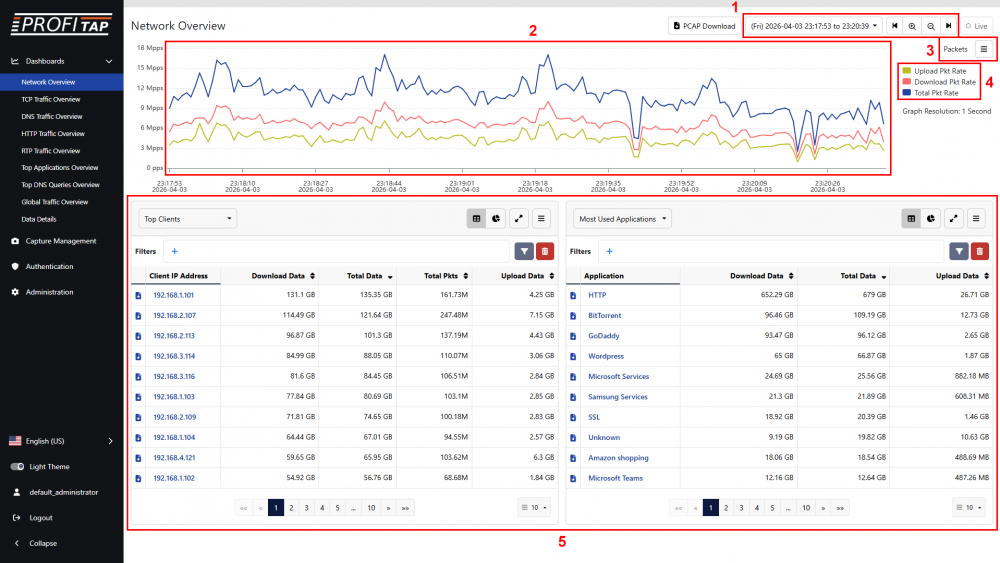
Network Overview dashboard - Packets view
The Network Overview dashboard displays a time graph giving an overview of bandwidth usage and number of packets over time for the selected time range.
[1] You can select the time range in the top-right corner of the screen.
[2] You can also click and drag on the time graph itself to create a selection for a specific time range. You can click and drag this selection to move it along the time graph, and click and drag the edges of this selection to adjust its start and end time. The contents of the sections below are automatically updated based on this selection. Right-click the selection to open its context menu, allowing you to zoom in on it, reset the zoom, or clear the selection.
[3] The time graph can be changed between Capture Bandwidth, Capture Packets, Analysis Bandwidth, and Analysis Packets in the top-right corner of the screen, below the time range controls.
[4] Click the rectangle next to each metric name to show or hide the corresponding line on the time graph.
[5] The sections below the time graph display metadata for the top entries in the selected time range for the selected categories.
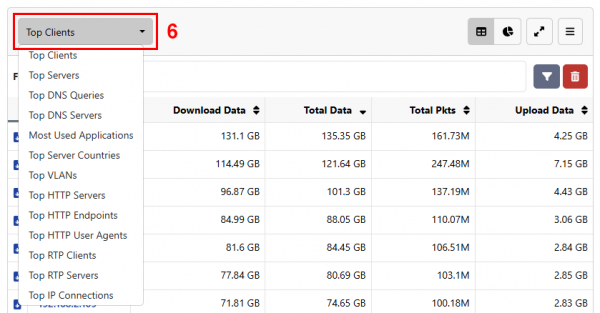
[6] The categories can be changed using the drop-down menu in the top-left corner of each section.
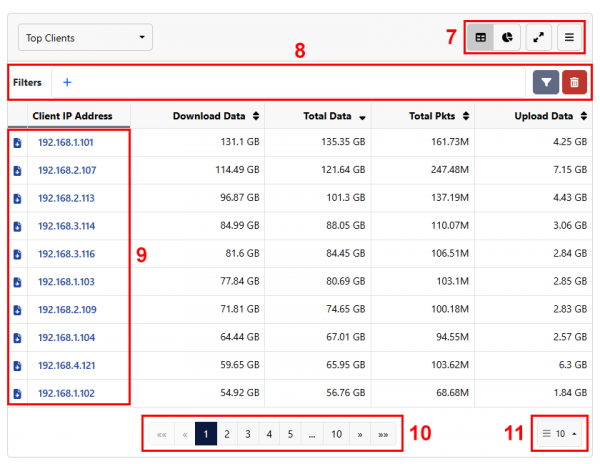
[7] In the top-right corner of each section, the view can be changed between table view and diagram view using the two leftmost buttons. The Expand/Collapse button toggles the width of the section between half-width and full-width. The rightmost button open a menu for selecting the metrics to display. In the table view, this menu allows you to show or hide specific metrics columns. The entries in the table can be sorted using the metrics columns that are displayed. In the diagram view, this menu allows you select which metric diagram to display.
[8] Display filters can be defined here. After defining filters, press the Apply Filter button to update the view. Press the Reset button to reset the display filters.
[9] In both the table view and diagram view, clicking a value and selecting View Details will navigate to the Details page with a pre-filled filter for this value (see Data Details below). In the table view, clicking a value also allows you to add it to the display filters as an include or exclude filter. A Download traffic PCAP button is present next to each table entry. Clicking this button downloads the traffic relevant to this entry in PCAPNG format.
[10] The navigation at the bottom of a table allows you navigate between pages.
[11] The number of entries displayed on each page of the table can be selected in the bottom-right corner.
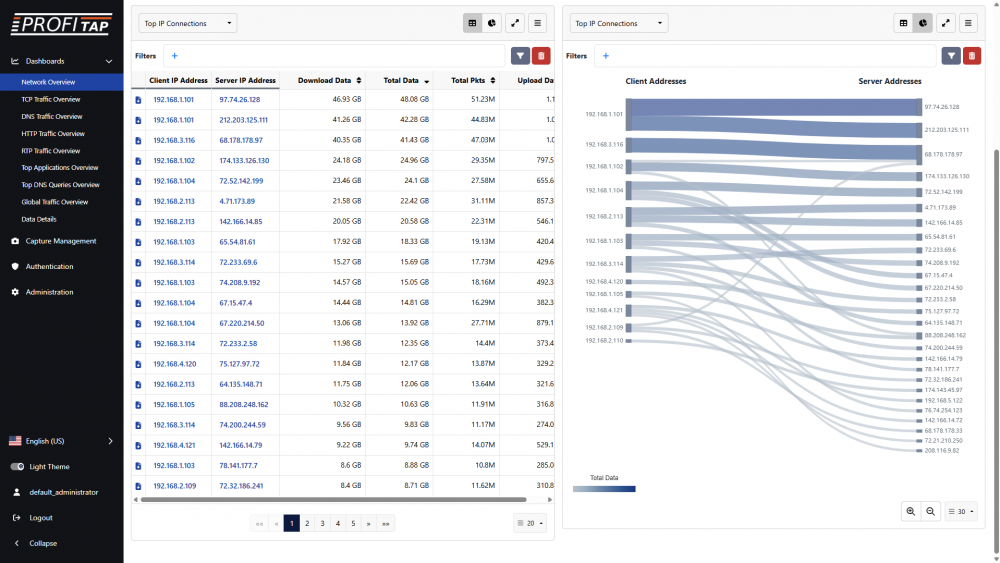
Network Overview dashboard - Top IP Connections
In the example above, we are displaying the top client-server IP connections in both sections. The left section is set to a table view, with entries sorted by Total Data. The right section is set to a diagram view, with Total Data selected as the metric to display. The type of diagram will depend on the selected metric; in this case, a Sankey diagram.
TCP Traffic Analysis
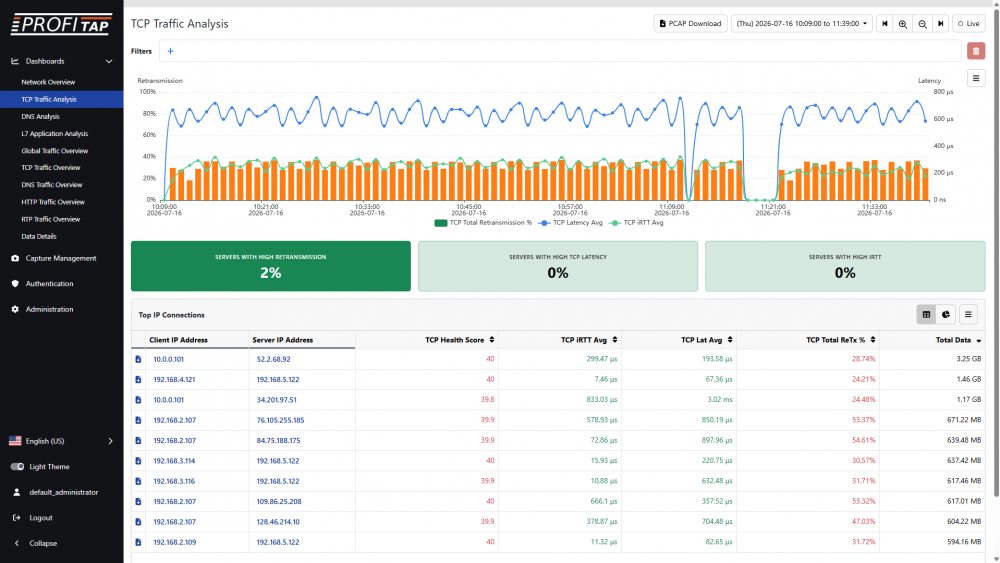
TCP Traffic Analysis dashboard
The TCP Traffic Analysis dashboard displays a time graph giving an overview of measured TCP iRTT, latency, and retransmissions over time for the selected time range.
The time graph can be changed between Average, Minimum, and Maximum in the top-right corner of the screen, below the time range controls.
The cards below the time graph allow you to filter for servers with high retransmission rates, latency, and iRTT.
The Filters bar at the top of the dashboard allows you to add custom filters.
Other controls are similar to the Network Overview dashboard.
DNS Analysis
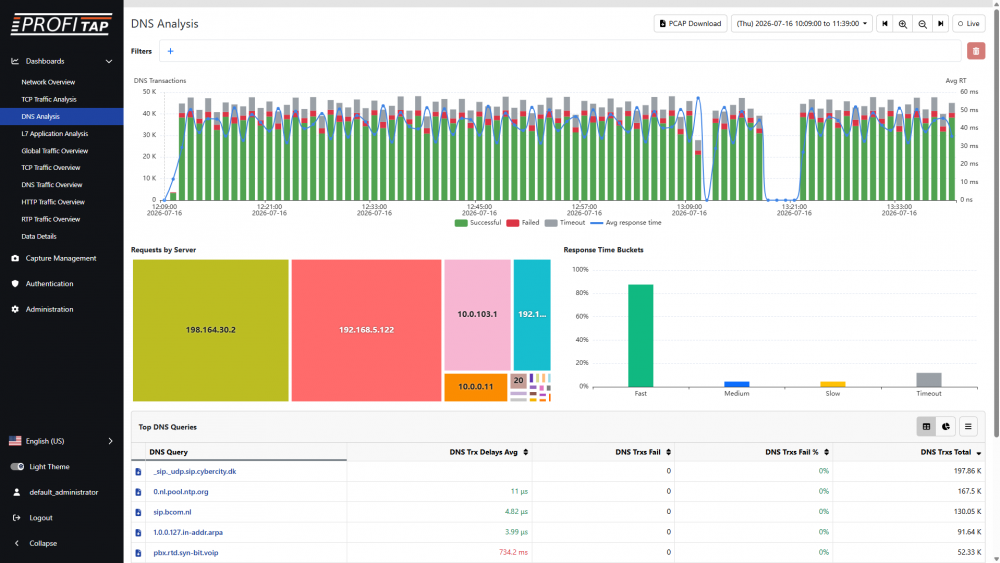
DNS Analysis dashboard
The DNS Analysis dashboard displays a time graph giving an overview of DNS transactions and average response time over time for the selected time range.
The Requests by Server section displays a treemap of the DNS servers with the most requests. Mousing over a server displays the number of requests and percentage of all requests for the selected time range. Clicking a server allows you to add an include or exclude filter for the current view, or to navigate to the Details page with an include filter filled-in.
The Response Time Buckets section displays a bar chart with the percentage of requests that had a fast, medium, and slow response time, and that timed out. Clicking one or more bars filters the view for the selected categories.
Other controls are similar to the Network Overview dashboard.
L7 Application Analysis
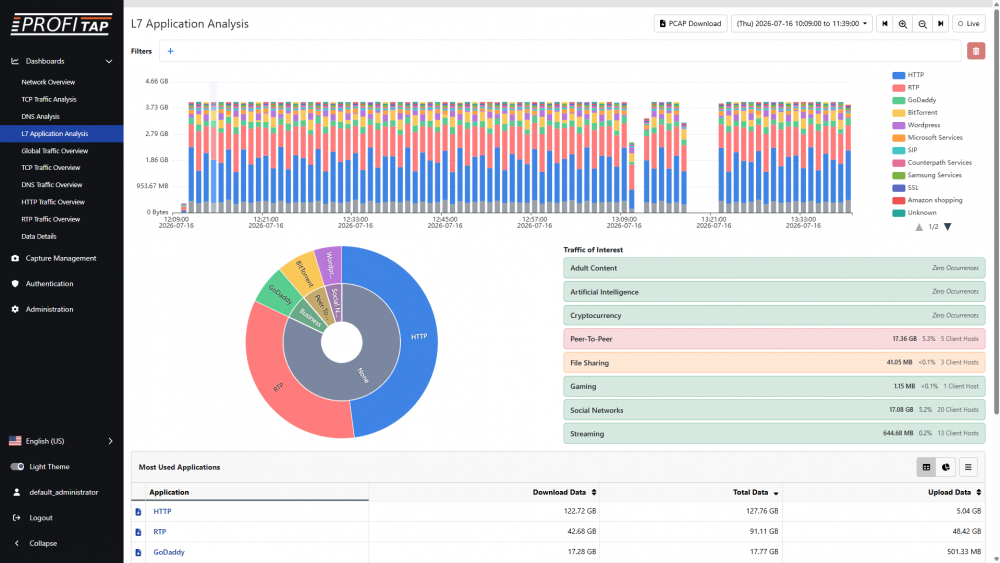
L7 Application Analysis dashboard
The L7 Application Analysis dashboard displays a time graph and donut chart giving an overview of the top applications for the selected time range.
The Traffic of Interest section displays an overview of application categories, and allows you to filter the dashboard on these categories.
Other controls are similar to the Network Overview dashboard.
Global Traffic Overview
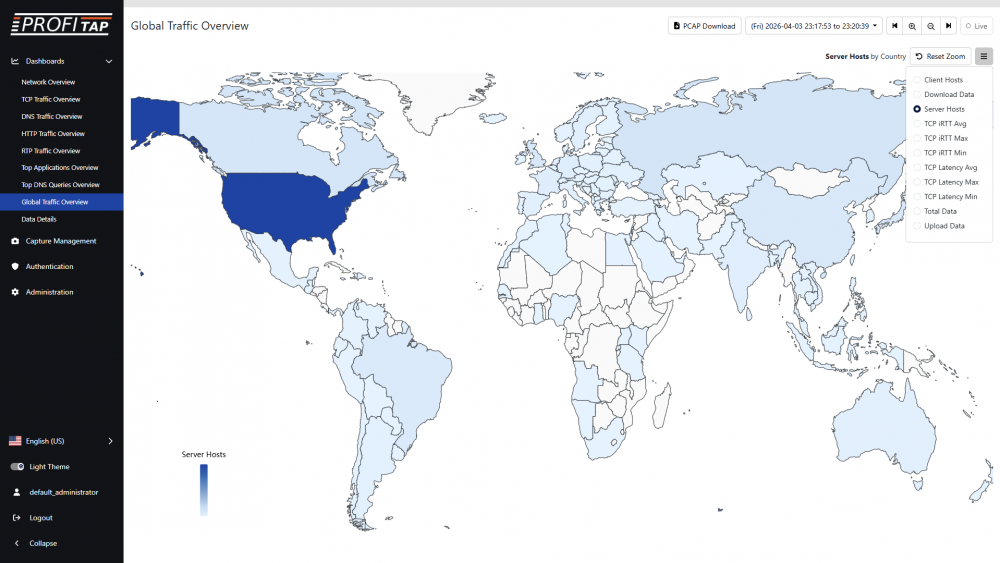
Global Traffic Overview dashboard
The Global Traffic Overview dashboard displays a world map providing an overview of traffic based on country, with each country colored depending on the selected metric, for the selected time range.
The metric to target can be changed using the menu in the top-right corner of the map.
Clicking a country and then View Details will navigate to its Details page (see Data Details below).
TCP Traffic Overview
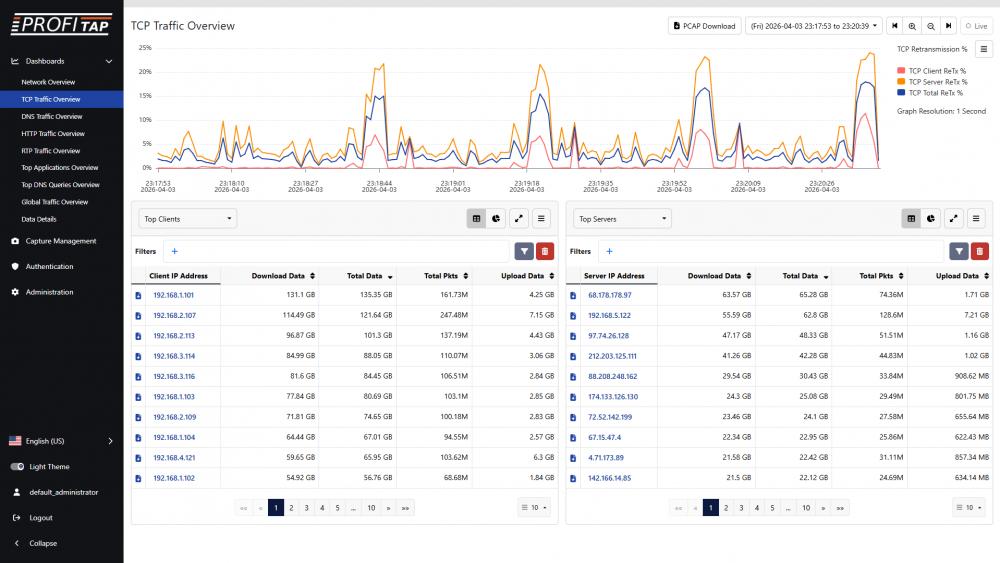
TCP Traffic Overview dashboard
The TCP Traffic Overview dashboard displays a time graph giving an overview of measured TCP iRTT, latency, retransmissions, and out-of-order packets over time for the selected time range.
The time graph can be changed between TCP iRTT, TCP Latency, TCP Retransmission Packets, TCP Retransmissions %, TCP Out of Order Packets, and TCP Out of Order % in the top-right corner of the screen, below the time range controls.
Other controls are similar to the Network Overview dashboard.
DNS Traffic Overview
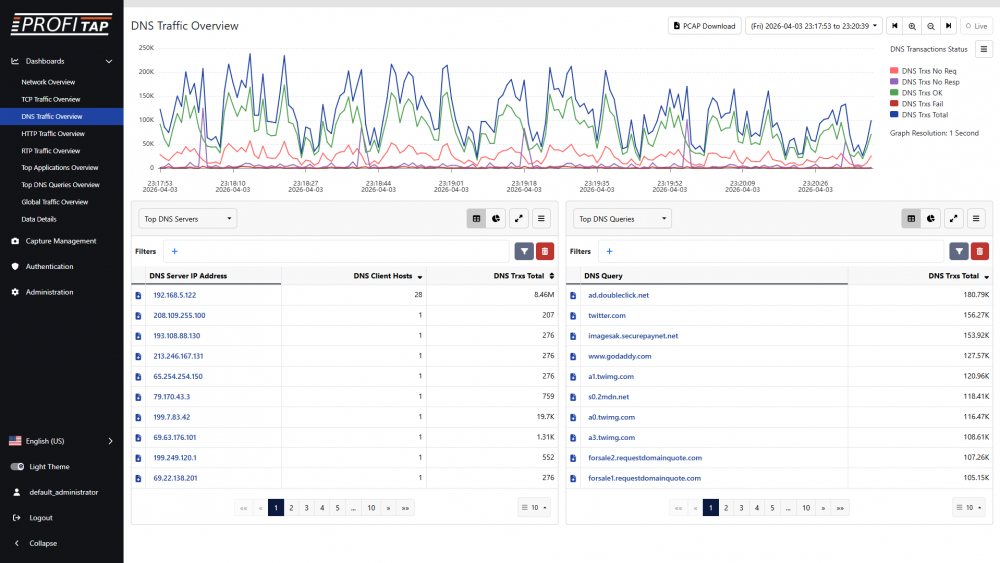
DNS Traffic Overview dashboard
The DNS Traffic Overview dashboard displays a time graph giving an overview of DNS functionality and performance over time for the selected time range.
The time graph can be changed between Transactions Delays, Transactions Status, Transactions Status %, Transactions Performance Success, Transactions Performance Success %, Transactions Performance Failed, Transactions Performance Failed %, Transactions Performance Total, and Transactions Performance Total % in the top-right corner of the screen, below the time range controls.
Other controls are similar to the Network Overview dashboard.
HTTP Traffic Overview

HTTP Traffic Overview dashboard
The HTTP Traffic Overview dashboard displays a time graph giving an overview of HTTP functionality and performance over time for the selected time range.
The time graph can be changed between Transactions Delays, Transactions Status, Transactions Status %, Transactions Performance Success, Transactions Performance Success %, Transactions Performance Failed, Transactions Performance Failed %, Transactions Performance Total, and Transactions Performance Total % in the top-right corner of the screen, below the time range controls.
Other controls are similar to the Network Overview dashboard.
RTP Traffic Overview
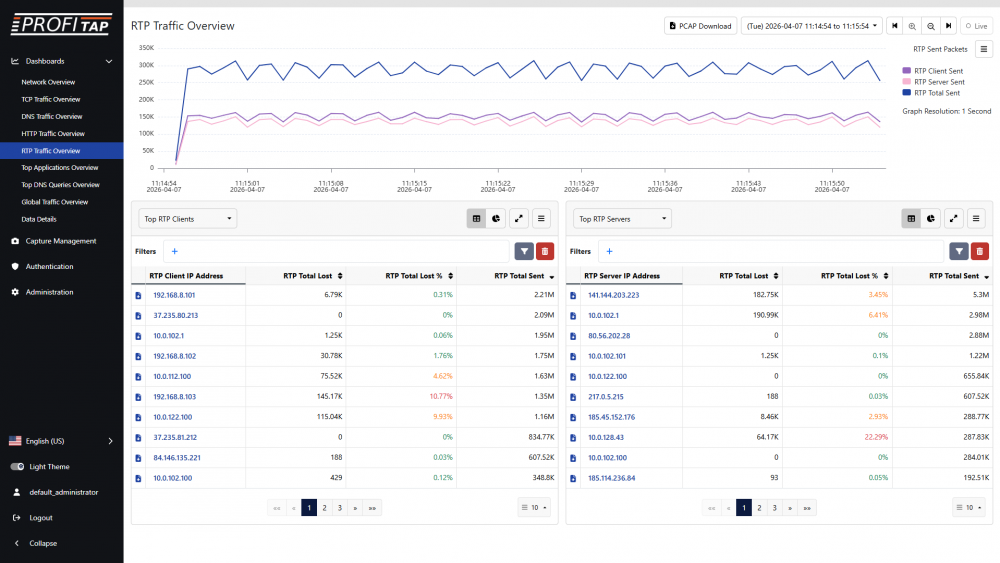
RTP Traffic Overview dashboard
The RTP Traffic Overview dashboard displays a time graph giving an overview of RTP functionality and performance over time for the selected time range.
The time graph can be changed between Sent Packets, Lost Packets, Lost Packets %, Overhead Packets, Overhead Packets %, Out of Order Packets, Out of Order Packets %, Duplicate Packets, Duplicate Packets %, Jitter, and MOS Estimation in the top-right corner of the screen, below the time range controls.
Other controls are similar to the Network Overview dashboard.
Data Details
The Data Details dashboard allows you to display and dive into accumulated data for the selected time range and filters.
In the other dashboards, selecting View Details for a value will navigate to a Details page with a pre-filled filter for the selected value and a back arrow for navigating to the previous dashboard. This Details page and the Data Details dashboard are functionally the same.
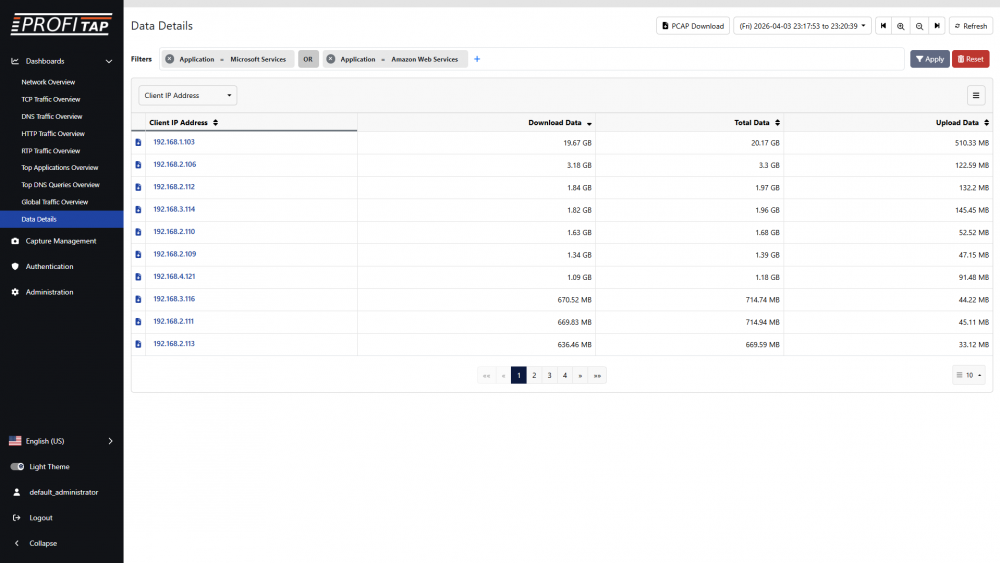
Data Details dashboard
Filters
Filters can be managed in the Filters section at the top of the dashboard.
To add a filter, click the + button and select a filter parameter from the list, after which a list of possible values to choose from will be displayed (this can take a few seconds to appear depending on the amount of data). Select a value from the list or type one in.
Clicking the equals sign (=) allows you to change the filter operator. The available operators will depend on the selected filter parameter. All filter parameters provide the equal-to and not-equal-to operators.
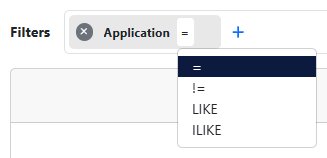
Alphanumeric filter parameters provide the LIKE operator for case-sensitive matching and ILIKE for case-insensitive matching.
LIKE and ILIKE expressions can contain normal characters and the following metasymbols:
%indicates an arbitrary number of arbitrary characters (including zero characters)._indicates a single arbitrary character.\is for escaping literals%,_and\.
Examples:
- String
foobarwill match pattern%oob%. - String
foobarwill match patternfo_bar. - String
foobarwill match patternfoo%. - String
foo_barwill match patternfoo\_bar. - With LIKE operator, string
foobarwill not match patternFOO%. - With ILIKE operator, string
foobarwill match patternFOO%.
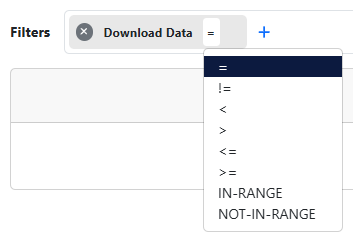
Numeric filter parameters provide the less-than, greater-than, less-than-or-equal-to, greater-than-or-equal-to, IN-RANGE, and NOT-IN-RANGE operators.
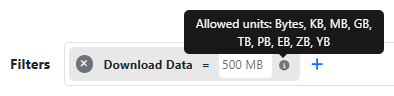


Numeric fields accept units appropriate to the selected parameter.
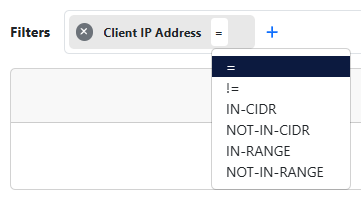
IP address filter parameters provide the IN-CIDR, NOT-IN-CIDR, IN-RANGE, and NOT-IN-RANGE operators.

When adding more than one filter, the operator between filters can be changed between AND and OR.
These filters are applied both to the dashboard display and to the Download PCAP feature.
Click the Apply button to query the database and display data matching the selected filters and time range. Click the Reset button to clear the filters.
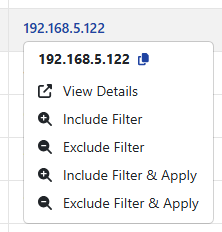
Clicking certain values in the table allows you to add an include or exclude filter to the query for this value, using the Include Filter and Exclude Filter options, or to create a new query with an include filter for this value, using the View Details option.
Table
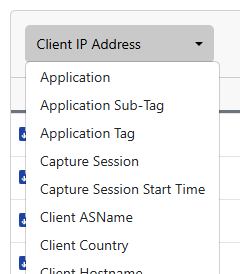
In the table displaying entries of accumulated data, the primary parameter can be changed using the drop-down menu in the top-left corner.
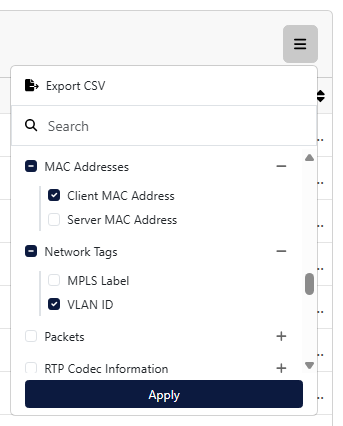
The button in the top-right corner of the table opens a menu for selecting which metrics columns to display or hide. Available metrics are categorized, and the search field can be used to look for specific metrics. An Export CSV button is also available in this menu for downloading the table as a CSV file.
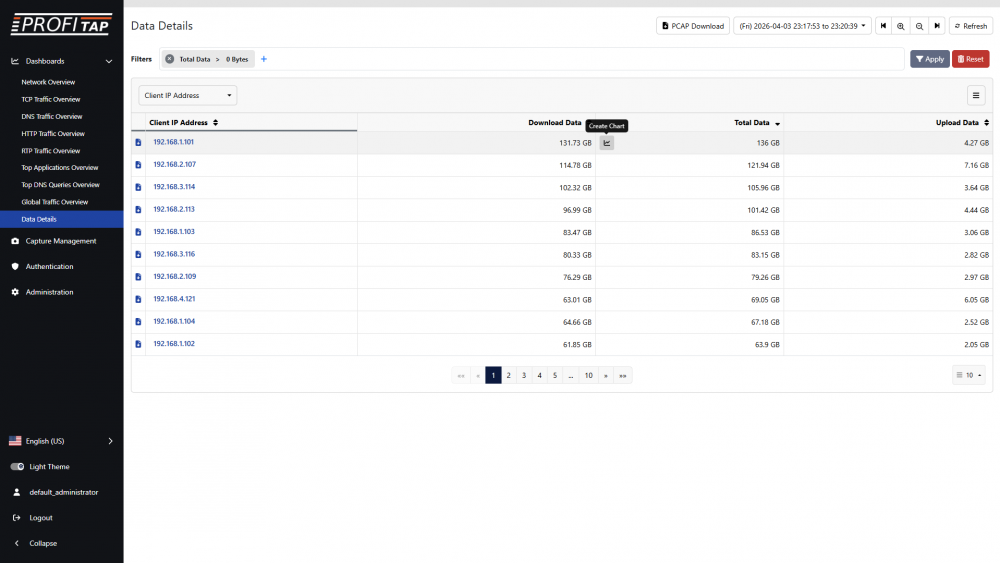
The entries in the table can be sorted using the metrics columns that are displayed by clicking the column header.
The navigation at the bottom of a table allows you navigate between pages.
The number of entries displayed on each page of the table can be selected in the bottom-right corner.
The Download traffic PCAP button on the left of each table entry allows you to download the accumulated traffic for this entry.
The PCAP Download button in the top-right corner of the page allows you to download the accumulated traffic for all displayed entries in the selected time range.
Time graphs
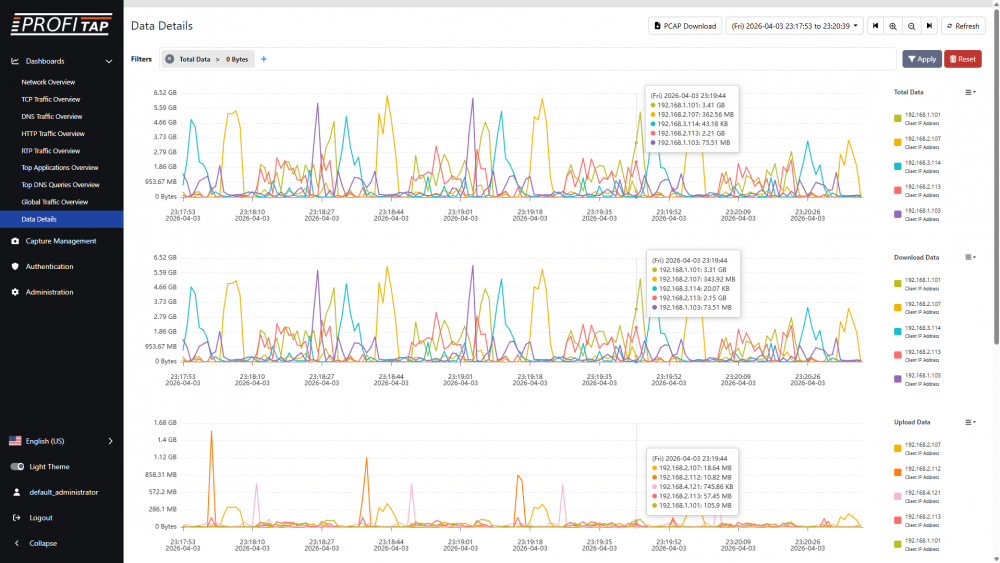
Hovering certain values in the table gives the option to create a time graph for tracking the selected metric over time for the selected primary parameter entry. Up to 3 time graphs can be created, for 3 different metrics.
With a time graph created for a metric, hovering the value of a different entry for that same metric allows you to add a line in the time graph for tracking that metric for that entry. Up to 5 lines can be created.
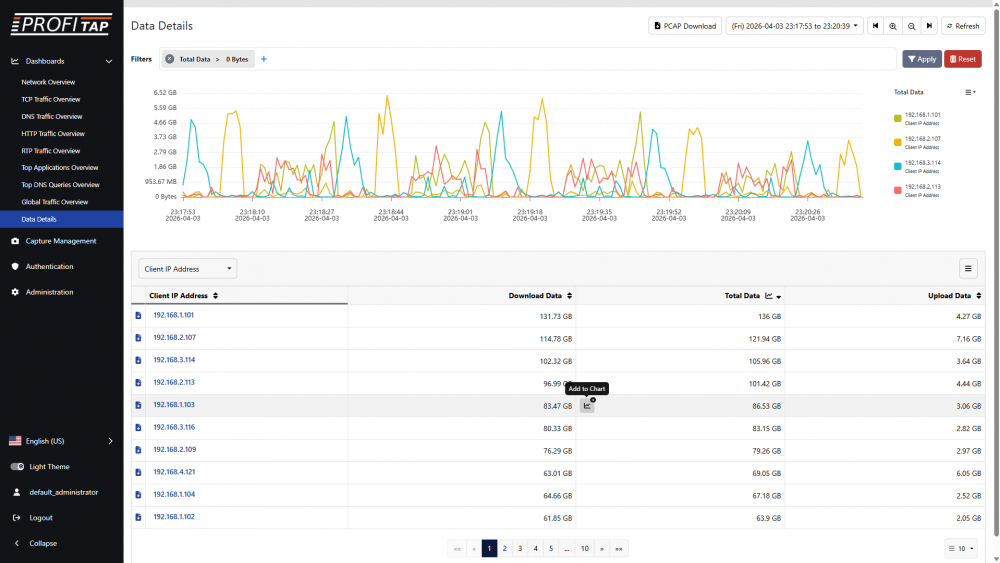
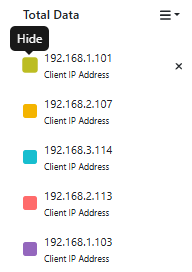
Click the square next to each parameter to show or hide the corresponding line on the time graph.
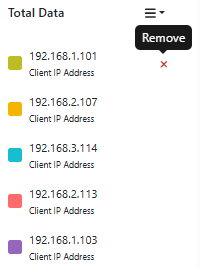
Hover over a parameter and click the Remove cross to remove it from the time graph.
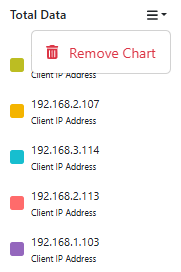
Click the button in the top-right corner of a time graph and select Remove Chart to remove it.